
A flickering intercom image doesn’t always mean the camera has failed. To fix a flickering video feed on a residential intercom, clean the lens, check the camera’s exposure and anti-flicker settings, and inspect the power and cable connections. In the UAE, artificial lighting on 50 Hz power commonly produces 100 light pulses per second, which can create visible flicker if the camera settings don’t suit the lighting.
It’s frustrating when an intercom’s live view is unclear, especially when you rely on it to see who’s at the entrance. This guide shows you how to narrow down the cause, check wiring and power safely, adjust camera settings, and compare live footage with recordings. Follow the steps in order: simple checks can help distinguish a lighting or network issue from a damaged connection or camera fault.
Key Takeaways
- Use the pattern of the flicker to narrow down whether lighting, camera behaviour, or a connection issue is involved.
- Rolling bands and moiré patterns have different visual clues; identifying which appears can guide the next adjustment.
- Inspect accessible cables and connections for looseness or visible damage, and leave internal electrical testing to a qualified technician.
- Compare the live view with a saved recording to see whether the issue comes from capture, transmission, or playback.
- Work through troubleshooting in a steady order, from basic checks to camera, power, and network diagnostics.
Artificial-light refresh frequency and camera shutter or exposure settings
Call an electrician if flicker accompanies damaged power wiring or a suspect supply; call an intercom technician if camera settings, firmware, or internal connections need attention. Arrange help when the feed still flickers after basic lens and settings checks.
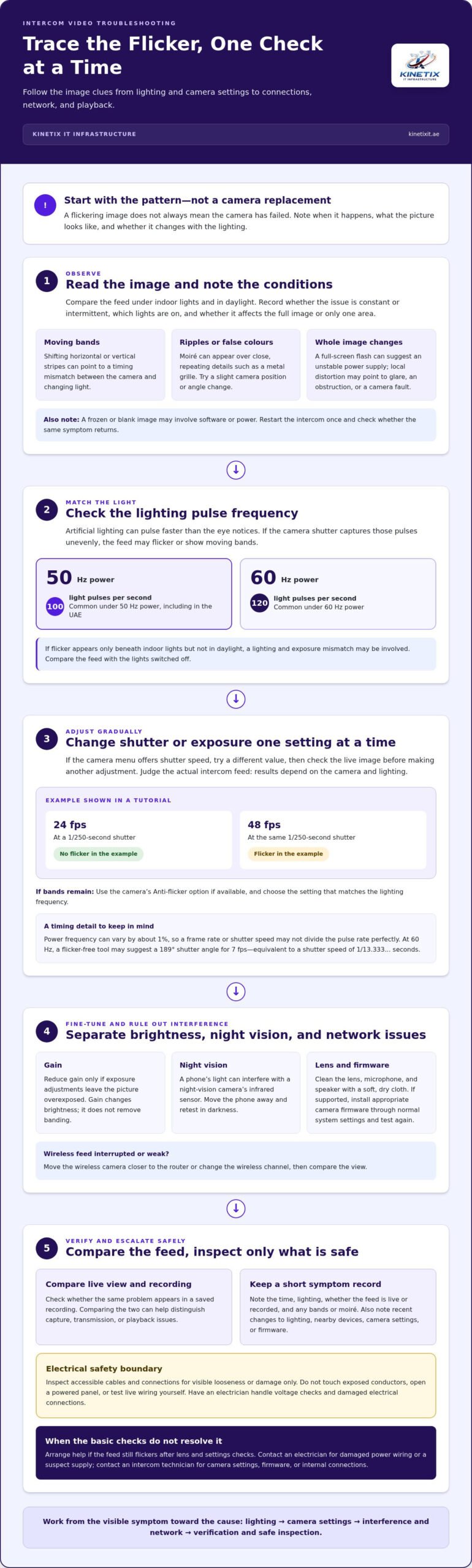
- Match the camera to the lighting. Under 50 Hz power, artificial lights commonly produce 100 light pulses per second. Under 60 Hz power, they commonly produce 120. If the camera’s shutter captures those pulses unevenly, the image can show flicker or moving bands. Note whether the problem appears only under indoor lights or also in daylight; that comparison helps isolate a lighting mismatch.
- Adjust shutter or exposure one setting at a time. If the camera menu offers a shutter speed, try a different value and check the live image after each change. Shutter adjustment may stabilise an image affected by lighting pulses. For example, one tutorial shows 24 fps footage at a 1/250-second shutter without flicker, while 48 fps at the same shutter shows flicker. Results depend on the camera and lighting, so judge the actual intercom feed.
- Use the camera’s Anti-flicker option if exposure changes don’t clear the bands. Choose the setting that matches the lighting frequency when the menu provides that choice. Power frequency can vary by about 1%, so a frame rate or shutter speed may not divide the pulse rate perfectly. At 60 Hz, a flicker-free tool may suggest a 189° shutter angle for 7 fps; that angle corresponds to a shutter speed of 1/13.333… seconds.
- Reduce gain only if exposure adjustments leave the picture overexposed. Gain changes image brightness, but it doesn’t remove banding. Lowering it may restore detail after you change the shutter speed, but adjusting gain alone won’t correct a timing mismatch. If your intercom supports firmware updates, install the appropriate camera firmware through its normal system settings, then test the image again.
- Check night vision and network effects before changing more settings. A phone’s light can interfere with a night-vision camera’s infrared sensor, creating flicker or distortion; move the phone away and retest in darkness. Clean the camera lens, microphone, and speaker with a soft, dry cloth. For a wireless camera with a weak or interrupted feed, move it closer to the router or change the wireless channel, then compare the view. If flicker persists, contact the system provider to assess the camera and connections.
Causes of flickering, rolling bands and moiré patterns
- Compare where and when the flicker appears. If it starts only beneath an indoor lamp, artificial lighting may be interacting with camera exposure. If it appears in daylight and at night, inspect other possible causes, such as power, cables, or camera hardware. Record whether the symptom is constant or intermittent; that pattern helps narrow down the fault.
- Identify rolling bands by how they move across the picture. Horizontal or vertical stripes that shift through the frame often point to a timing mismatch between the camera and changing light. A setting that works in daylight may behave differently under LED lighting. Note which lights are on, then compare the feed with them switched off.
- Distinguish flicker from moiré before changing settings. Moiré appears as rippling waves, false colours, or fine patterns over closely spaced details, such as a metal grille or woven screen. It occurs when repeating scene details interact with the camera’s image sensor. Move the camera slightly or change its angle; if the pattern changes, the grille may be causing it.
- Check whether the whole image changes or only one area. A full-screen flash can suggest an unstable power supply, while local distortion may point to glare, an obstruction, or a camera fault. If the image freezes or goes blank, consider software glitches or power issues. Restart the intercom once, then see whether the same symptom returns.
- Consider common causes of intercom failure if video problems come with other symptoms. A system that disconnects or freezes may have an unstable internet connection or an overloaded network. An unresponsive unit may also have a power or ageing-hardware problem. If the visitor remains visible but cannot be heard, check the entrance panel and indoor unit for audio issues.
- Review what changed before the issue began. A new light, nearby electronic device, recent camera adjustment, or firmware change may explain a new pattern. For example, if flicker began after a lighting replacement, compare the image with that light switched off. If it began after a camera update, review its exposure settings and available firmware status.
- Keep a brief symptom record before making further changes. Note the time, lighting conditions, whether the feed is live or recorded, and any bands or moiré visible. These details help distinguish image capture problems from network interruptions or hardware faults. If the cause remains unclear, intercom troubleshooting can help assess the system’s connected components.
Consider whether ageing hardware is involved. It can cause an intercom system to slow down or stop working, so include the system’s condition when reviewing persistent symptoms.
Loose, damaged, or poor-quality wiring and connections
Before inspecting intercom wiring, switch off power at the identified supply and avoid touching exposed conductors. Don’t open a powered panel or test live wiring yourself. Have an electrician handle voltage checks and damaged electrical connections.
- Look for visible cable damage without pulling or dismantling the system. Check accessible sections near the entrance panel, monitor, and cable entry points for cuts, crushed insulation, kinks, or signs of wear. Wiring damage can weaken the intercom signal, while movement near a damaged section may make the picture flicker intermittently.
- Check accessible connections for looseness only after switching off power. A cable that has slipped from its terminal or a connector that no longer sits firmly can interrupt the camera signal. Don’t force a plug or terminal into place. Note its location and have a technician inspect connections that require opening the panel.
- Compare cable routing with the site drawings, if available. Before troubleshooting, confirm that the cabling follows the intended route and connects the camera to the correct equipment. A renovation or accidental rerouting can leave the video line disconnected or connected incorrectly. Note any mismatch rather than moving wires yourself.
- Consider the full path between the outdoor camera and indoor screen. A poor-quality or damaged camera cable can distort the signal, even when the camera itself appears intact. If inspection identifies a damaged cable, it should be replaced with a high-quality cable suitable for the system. A technician can assess the cable type and connection points.
- Separate wiring faults from lighting and camera settings. Fluorescent or other artificial lighting may produce visible bands when camera exposure and shutter speed don’t suit the light. If bands change with the lighting but the feed otherwise remains stable, settings may be involved. If the image cuts out when the cable or panel moves, a connection fault needs attention.
- Record what happens before arranging a repair. Note whether the flicker is continuous, appears after rain or direct outdoor exposure, or changes when the entrance panel is used. Loose cables and faulty connections can also affect intercom sound quality. If static or distortion accompanies video problems, include both symptoms when describing the issue.
Persistent interference or static can point to wiring or the microphone as the cause. If it continues, contact an intercom technician and describe the sound problem as well as the video issue. If an intercom call has no sound, a disconnected speaker or microphone may be responsible. Mention whether the call is silent and whether interference or static continues, so the wiring and microphone can be considered during troubleshooting.
Verifying live view and recorded video after adjustments
- Change one setting at a time, then compare the live image with your original view. Record each camera adjustment, such as exposure or anti-flicker mode, so you can identify which change matters. Keep the entrance panel in the same position and lighting conditions. Changing several settings together makes troubleshooting harder because it obscures the cause of any improvement.
- Test the live view under the conditions that caused the problem. If flicker appeared beneath a hallway lamp, check the camera with that lamp on and off. If it appeared at the gate after dark, repeat the test in night mode. A clear image in daylight alone doesn’t confirm performance under artificial lighting or infrared illumination.
- Watch for different symptoms during the live test. Flicker across the whole image differs from a frozen frame, delayed response, or temporary blank screen. Note when each issue appears, such as when someone presses the call button or another household device uses the network. These clues help distinguish camera capture problems from power or connection interruptions.
- Check the recorded clip after viewing the live feed. If the live image looks steady but the recording flickers, inspect recording or playback settings in the intercom app. If both views show the same bands, the camera may be capturing them before saving. Compare footage of the same entrance scene, since differences in movement or lighting can make two clips misleading.
- Compare playback on the intercom screen and another supported device, if available. If a saved clip appears smooth on one screen but choppy on another, the display or playback path may affect what you see. If it looks the same across devices, investigate the original video feed. Don’t change camera exposure to correct a problem limited to one screen.
- Repeat the comparison after restarting the intercom and its connected equipment. A software glitch can make video freeze or appear blank, while an unstable network can interrupt a smart intercom’s live stream. Check that the power source remains connected and the network is stable. If other devices also disconnect, note that alongside the intercom results.
- Finish by testing the functions you rely on at the entrance. Confirm that live video appears when a visitor calls, recorded footage plays clearly, and the image remains stable as the visitor moves. Keep a short record of settings, symptoms, and devices tested. If flicker persists in live and saved video, share those observations during technical troubleshooting.
How do I troubleshoot a flickering wired intercom camera step by step?
- Describe the symptom before changing anything. Note whether the image flashes, freezes, shows moving bands, or goes blank. Record whether it happens in daylight, under indoor lighting, or at night. For example, a feed that flickers only when night vision starts points toward lighting or infrared performance rather than a constant display fault.
- Clean the camera lens with a soft, dry cloth, then check its view. Dust or debris can reduce video quality, while direct sunlight can wash out an outdoor camera’s image. Check that the camera is protected from the elements and nothing blocks its view. Retest from the indoor screen after cleaning.
- Check that the intercom is connected to its power source and that the outlet works. If the screen is blank or freezes along with the camera, note whether other system functions respond. A power interruption can affect both audio and video, so test the display and entrance panel rather than judging the camera image alone.
- Look for a tripped circuit breaker or visible power-supply wear, but don’t open a powered panel. Keep your hands away from exposed conductors. If the supply appears damaged or the breaker trips again, stop testing and arrange an electrician’s inspection. Voltage testing requires appropriate equipment and should be handled by someone qualified.
- Inspect only accessible cable runs and connectors for visible damage or disconnection. Check the camera and indoor monitor ends without pulling wires or dismantling live equipment. A damaged cable can weaken the signal; loose or faulty connections can cause intermittent distortion. Note any damage for the technician instead of attempting an internal repair.
- Restart the intercom using its normal controls, then check whether the same fault returns. If the system uses camera firmware or an app, check for available updates through its usual settings. Software glitches can make video freeze or go blank. Change one setting at a time so each retest gives a useful result.
- Test in the lighting conditions linked to the fault. If flicker appears under artificial light, compare the image with that light switched off. If it starts in night mode, check whether ambient light is limited or infrared LEDs appear faulty. Avoid covering or touching the camera’s infrared components during this test.
- Compare the live image with a saved clip, if recording is available. If both show the same defect, the camera or its signal path may be involved; if only playback appears affected, review the recording device or app. For persistent faults, use intercom troubleshooting to have the camera, wiring, and connections assessed.
KINETIX IT Infrastructure: Wi-Fi Installation & Setup
KINETIX IT Infrastructure provides Wi-Fi Installation & Setup and Wi-Fi Troubleshooting & Repair when an intercom’s video interruptions point to a wireless network issue. If the camera itself works but live viewing freezes or disconnects, network performance may be worth investigating alongside the camera. Wi-Fi Dead Zone Fixing can address weak coverage where the intercom connects, while Wi-Fi Optimization can help improve the home network’s performance.
These services are relevant when the feed problem appears tied to wireless coverage or connectivity, rather than visible camera damage or a faulty wired connection. KINETIX IT Infrastructure can assess the Wi-Fi setup and troubleshoot network-related interruptions. For a wired camera fault, focus on the intercom’s camera, power, and cabling instead.
Contact KINETIX IT Infrastructure or visit kinetixit.ae to discuss your Wi-Fi setup.
Restore a Clear View at the Entrance
A clear intercom view helps you make confident decisions at the door. If you’re still working to fix a flickering video feed on a residential intercom, use the fault pattern to guide your next step. A problem limited to live viewing calls for a different approach than a defect that remains in saved footage. Interruptions that coincide with network dropouts also warrant attention beyond camera adjustments.
Before seeking help, note when the issue appears and what you’ve already tested. This gives a technician a useful starting point and keeps the next steps focused. If the remaining issue points to home Wi-Fi coverage or connectivity, contact KINETIX IT Infrastructure to discuss the network side of the setup.
Contact KINETIX IT Infrastructure to discuss your next step. A methodical diagnosis can help you move toward a steadier view and a more dependable entrance experience.
Frequently Asked Questions
What causes a residential intercom video feed to flicker?
Flicker can result from mismatched camera exposure and artificial lighting, an unstable power supply, damaged connections, or a camera fault. To fix a flickering video feed on a residential intercom, first note when the symptom occurs. If it starts when a particular light turns on, lighting may be involved; if the screen also freezes or goes blank, check power or system operation. A consistent pattern helps guide the next inspection.
How do I troubleshoot a flickering wireless video intercom feed?
When fixing a flickering video feed on a residential intercom over Wi-Fi, compare its view with other devices using the same network. If several devices lose connection, restart the router and reduce unnecessary network traffic. If only the intercom struggles, test it closer to the router or try a different wireless channel, if available. A steady view nearby but interruptions at the entrance can point to weak coverage.
Can a faulty power supply or low voltage cause intercom video flicker?
Yes. An unstable or inadequate power supply can interrupt the camera or display, causing flicker, freezing, or a blank screen. Check that the system is connected and that its outlet works. If the power supply looks worn or damaged, stop using it and arrange an inspection. An electrician can safely assess wiring and supply levels with appropriate equipment.
How can loose wiring, damaged cables, or poor connections cause flickering?
A weak connection can interrupt the camera signal intermittently, so the picture may break up rather than fail completely. If the image changes when a door or gate moves, note the timing and tell the technician; movement may be affecting a cable route or connection. Don’t tug on wires to reproduce the fault. Visible cuts or crushed insulation call for professional inspection.
How do I fix flickering caused by night vision or infrared LEDs?
Check whether flickering starts as the camera switches into night vision. Move phone screens and other nearby light sources away, since their light can interfere with the infrared sensor. Also compare the view with more ambient light available. If the image still flickers in a dim scene, malfunctioning infrared LEDs may be involved. The camera needs technical assessment rather than further exposure adjustments.