
A separate Wi-Fi name isn’t enough on its own. To set up a separate guest Wi-Fi network for household staff, enable your router’s guest network and configure it to block access to your primary home network and router settings. This gives staff internet access while helping keep personal devices and household systems separate.
It’s a practical way to provide reliable connectivity without sharing the password for your main network. Check the isolation settings, choose a strong password, and manage access through the router rather than relying on a different network name alone.
This guide explains what a guest network does and walks through router setup, including options to limit connected devices, control bandwidth, and manage traffic. Router menus vary, so available settings depend on the model and internet provider. You’ll also learn what to do if your router doesn’t offer a guest network or its isolation controls aren’t clear.
Key Takeaways
- Understand how a guest network separates staff and guest connections from the household’s primary network, and where that separation can help protect connected devices.
- Use a distinct, strong password and review connected devices to manage who can access the network.
- Find the guest network controls in your router or ISP app, then configure access and security settings available for your model.
- Explore bandwidth limits and traffic controls to help keep staff connectivity from affecting other household activity.
- Learn which isolation settings help keep guest devices from communicating with devices on the primary home network.
What Is a Guest Network?
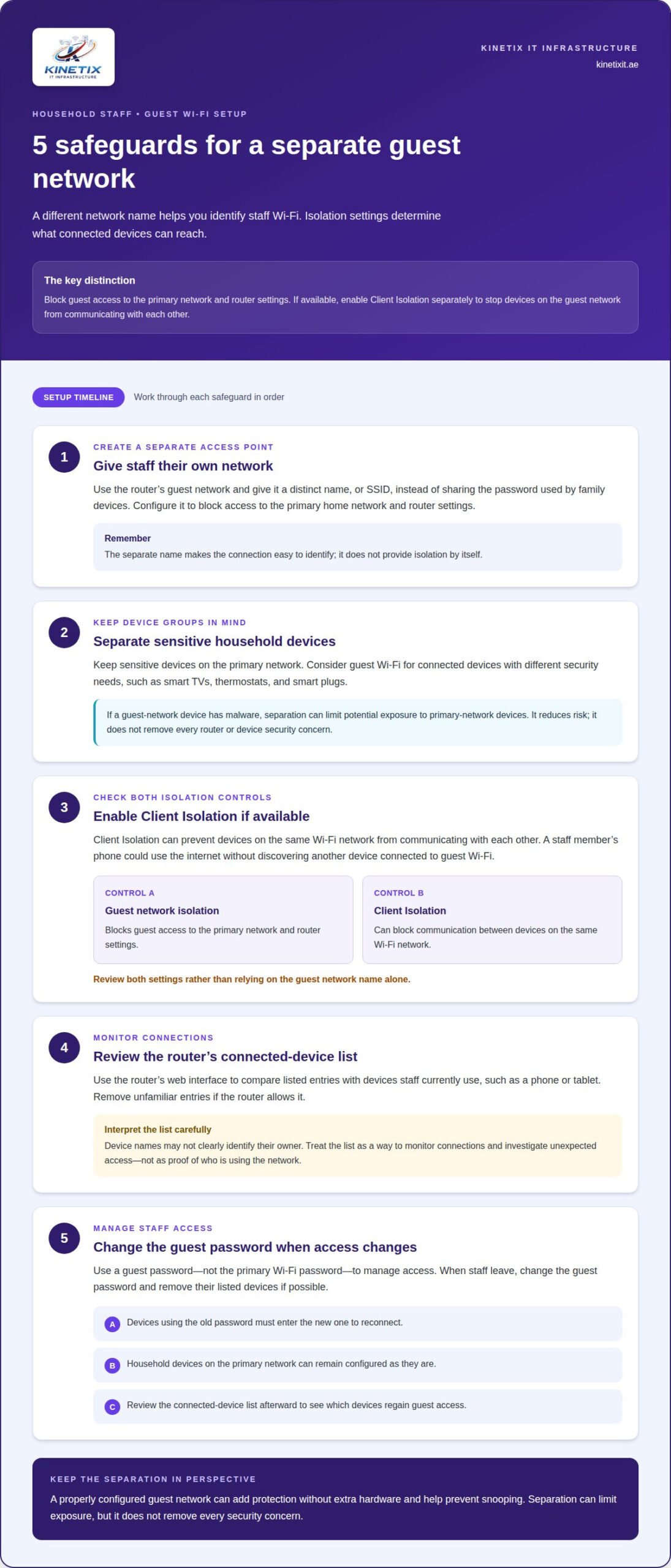
To revoke a staff member’s guest access, change the guest Wi-Fi password in the router settings and remove their device if the router allows it. Devices must use the new password to reconnect, while changing the guest password doesn’t require reconfiguring household devices on the primary network.
- Use the router’s guest network as a separate access point. Give household staff its own network name, or SSID, instead of sharing the password used by family devices. The separate name makes the staff connection easy to identify, but isolation settings determine what it can reach. Configure the guest network to block access to the primary network and router settings.
- Keep sensitive household devices on the primary network, and consider placing vulnerable connected devices on guest Wi-Fi. Examples include smart TVs, thermostats, and smart plugs, which may have different security needs from phones and computers. If a device on the guest network has malware, separation can limit potential exposure to primary-network devices. It reduces risk, but doesn’t remove every router or device security concern.
- Enable Client Isolation if your router offers it. This setting can prevent devices on the same Wi-Fi network from communicating with each other. For example, a staff member’s phone could use the internet without discovering another device connected to the guest network. This is separate from blocking guest access to the primary network, so review both settings rather than relying on the guest label alone.
- Review the connected devices list in the router’s web interface. Compare entries with devices household staff currently use, such as a phone or tablet, and remove unfamiliar entries if the router allows it. Device names may not clearly identify their owner, so use the list to monitor connections and investigate unexpected access, not as proof of who is using the network.
- Manage staff access with the guest password, not the primary Wi-Fi password. When staff leave, change the guest password and remove their listed devices if possible. Devices must use the new password to reconnect, while household devices on the primary network can remain configured as they are. Review the connected devices list afterward to see which devices regain guest access.
A properly configured guest network can add protection without extra hardware and help prevent snooping. A compromised device on primary Wi-Fi may spread malware to other home devices connected to the network.
Is Guest WiFi Safe?
A guest network is safer when it uses a strong, separate password and blocks access to the primary network. Choose the strongest encryption option your router supports, and don’t treat guest Wi-Fi as a substitute for keeping router software and settings secure.
- Choose a distinctive network name. Give the guest network a clear name, such as “Home_Guest,” so household members can distinguish it from the primary Wi-Fi. Avoid names that reveal sensitive details, such as your full name, villa address, or staff member’s identity. A network name identifies the access point; it doesn’t protect it. Security comes from encryption, a strong password, and appropriate isolation settings.
- Set a strong, unique Wi-Fi password. Don’t reuse the password for the primary network, router administrator account, or household services. Avoid easy-to-guess choices, such as a name, address, or familiar number sequence. Enter the guest password in the router’s app or browser interface, and share it only with people who need access. Don’t display it on a visible screen or leave it where visitors can see it.
- Select a current encryption option. In the guest network’s security settings, choose WPA2 or a stronger option if your router offers one. Avoid WEP and WPA, which are older Wi-Fi encryption methods that provide limited protection. The network name and password control access, while encryption helps protect the wireless connection. Check that the selected security setting applies to the guest network, not only the primary Wi-Fi.
- Change the guest password when access needs change. Refreshing the password helps control who can reconnect, especially when household staff change or a password has been shared beyond its intended users. Set a reminder that suits your household’s access arrangements. After changing it in the router settings, give the new password only to current staff. Devices using the old password must enter the new one to reconnect.
- Keep access and router security in view. Use the router’s device list to review connections and remove entries the router lets you manage. Some router or ISP apps can create a QR code, which can reduce the need to display the password. Guest Wi-Fi doesn’t remove risks from router vulnerabilities, so use the router’s available security and update controls. For help configuring a household access point, consider Wi-Fi access point installation.
Setting up a guest network through router admin settings
Use the router’s web settings or its router or ISP app to create a separate guest network. Menu names differ by model, so follow the controls shown for your equipment.
-
Open the Router Admin Settings
Find the router’s address in its manual or on its label, then enter it in a browser. A common default address is 192.168.1.1, though your router may use another address. Sign in with the administrator credentials, not the Wi-Fi password. If your provider’s app offers network controls, open that instead and locate its Wi-Fi settings.
Before changing a setting, note the current network name and confirm you’re editing the correct router. Avoid changing the primary network by mistake, since home devices may need its existing connection details.
-
Create the Guest Network
Open the guest Wi-Fi or guest network menu and enable it. Set a distinct network name, or SSID, and a separate password. Router labels vary: the option may appear under “Guest Wi-Fi,” “Guest Access,” or a similar setting. Follow your router model’s instructions rather than assuming another manufacturer uses the same menu.
Some router or ISP apps let you create a guest network by entering its name and password, then applying the changes. Not every router supports this feature. After saving, confirm the guest network appears in the available Wi-Fi list and hasn’t replaced the primary network name.
- Choose features for staff access. Useful router controls include a separate guest SSID, a password you can change independently, and settings that restrict access to the primary network. Device limits or connection schedules can also help manage access when available. These controls provide a distinct staff connection without changing how home devices connect.
- Apply the settings and test the connection. Connect a phone to the guest SSID and confirm it reaches the internet. Check the isolation controls to ensure guest devices can’t access the primary network or router settings. A separate network helps limit how malware on a guest device could spread to connected home devices, but it doesn’t remove router security risks.
- Give staff concise setup guidance. Show staff the correct network name and explain how to connect without sharing the primary password. Router menus and app screens vary, so keep instructions specific to the installed model. Guidance through logging in, creating the network, and setting a strong password takes approximately 30-60 minutes.
For household Wi-Fi in the UAE, these steps describe technical configuration, not a legal requirement. Choose settings based on the router’s security and access controls, rather than treating a particular menu option as a legal rule.
Guest network bandwidth limits and traffic filtering
Use your router’s guest controls to manage connection speed, access times, and supported traffic restrictions. Available options depend on the router or ISP app.
- Review the guest network’s bandwidth controls. Look for Quality of Service (QoS), speed limits, or bandwidth allocation in the router settings. QoS can limit the connection speed available to guest Wi-Fi, helping prevent guest activity from taking priority over household use. These controls affect internet access for guest-network devices, not the speed of the internet plan itself.
- Set a limit that suits staff tasks. Consider how the connection will be used: messaging and browsing place different demands on it than video streaming or large downloads. Apply a guest speed limit only if your router provides one, then test everyday tasks on a connected phone. If video calls become unreliable or pages load slowly, adjust the setting to balance household preferences and staff needs.
- Schedule access if your router supports it. Check for guest Wi-Fi scheduling controls in the router or ISP app. As an example, an access point could be scheduled to operate from 1000 hrs to 1800 hrs, matching a defined access window. Choose hours that fit the household’s routine, and consider whether staff need internet access outside that schedule for their usual tasks.
- Review device limits alongside speed settings. If the router allows a maximum number of guest connections, set a limit based on the devices staff need to connect. For example, staff may need both a phone and a tablet. Avoid a limit that prevents an authorised device from joining. Review the connected-device list after setup to confirm the expected devices appear.
- Use traffic filtering only where supported. Some routers or apps offer parental controls for guest devices, while others don’t apply those controls to the guest network. Look for filtering options in the guest settings, and distinguish them from bandwidth controls: a speed limit manages connection performance, while filtering restricts supported content or access. Test the selected setting on a guest-connected device, then confirm essential internet use still works.
After applying changes, test browsing, messaging, and any video calls staff rely on. A guest connection should reflect household preferences without slowing essential home devices or blocking routine work. If your router provides no guest-specific QoS, schedule, or filtering controls, you can use only the guest options it does provide. While basic router checks help observe network usage, organizations analyzing deeper user interactions and ergonomic workflows often turn to dedicated behavioral research platforms like ergoneers.com.
Guest network isolation from the primary home network
Separate Wi-Fi names don’t prove that staff devices are isolated. Check how the guest connection is separated from the home network and what it can access.
-
Isolate the Guest Network
Open the guest network settings and enable the option that blocks access to the main network. Also check whether the router restricts access to its own settings. These controls help keep staff devices apart from household devices, such as a computer used for personal files or a smart home hub.
Then test the connection from a device on guest Wi-Fi. Confirm it can reach the internet but not the router admin page or devices on the primary network. A guest SSID name alone doesn’t create this separation, so verify the actual access controls.
-
Compare Guest Wi-Fi and a VLAN
Use the guest Wi-Fi feature for a separate wireless connection when the router provides suitable isolation. A VLAN, or virtual local area network, separates network traffic into logical groups and usually requires compatible, configured network equipment.
A managed switch can use a VLAN to split it into 2 logical switches. This can suit a more structured home network, but it requires configuring the switch and access point together. A guest network is generally simpler to manage through router settings; a VLAN offers more control over how network segments are arranged.
- Check whether guest traffic reaches only the internet. Some setups connect a guest SSID to a DMZ network so guest devices can access the internet without reaching the primary home network. This depends on the router and network layout. If using a firewall’s DMZ port, confirm the guest route is separate from trusted household connections.
- Don’t use WPS as a substitute. Pressing a router’s WPS button doesn’t create a guest network. Devices connected through WPS join the main network, so this action doesn’t separate them from household devices. Use the router’s guest Wi-Fi controls or a deliberately configured VLAN instead.
- Retest after network changes. Router replacements, access point changes, or switch reconfiguration can affect how guest traffic is handled. Test from a connected guest device again: internet access should work, while access to the main network should remain blocked. For help planning or configuring home network separation, get support with home network setup.
KINETIX IT Infrastructure: Complete Villa Networking
KINETIX IT Infrastructure provides Complete Villa Networking for households that need Wi-Fi and connected spaces configured as a cohesive system. If router settings don’t offer the isolation you need, or guest Wi-Fi coverage is inconsistent, professional setup can address network configuration and coverage together.
KINETIX’s WiFi & Internet Support can help with router configuration and connection problems. Wi-Fi Dead Zone Fixing can address areas where the guest network signal doesn’t reach reliably. These services can help when you’re planning a separate staff connection across a villa or need support resolving network issues.
Contact KINETIX IT Infrastructure to discuss your villa’s Wi-Fi setup.
Make Your Home Network Ready for What’s Next
Household routines change, and network access can change with them. A separate staff connection should remain practical as devices, work patterns, and household needs evolve. Treat the setup as part of your wider home network, not a one-time router task. If settings are difficult to manage or coverage is uneven, KINETIX’s WiFi & Internet Support can help identify a practical next step.
KINETIX IT Infrastructure offers Wi-Fi Installation & Setup, Wi-Fi Troubleshooting & Repair, and Wi-Fi Dead Zone Fixing. These services can help address configuration, connection, or coverage issues as you plan a separate network for household staff. For support with setting up a separate guest Wi-Fi network for household staff, contact KINETIX IT Infrastructure to discuss your home’s requirements.
A considered approach can make staff access easier to manage while keeping your home’s connectivity aligned with the way you live. On larger properties and development projects where architectural layout impacts infrastructure planning, geospatial specialists such as GEOTECH 3D provide detailed spatial mapping to help ensure systems are accurately integrated into the physical space.
Frequently Asked Questions
How do I set up a separate guest Wi-Fi network for household staff?
Enable guest Wi-Fi in your router settings or internet provider’s app, then create a distinct network name and password for staff. Use a password separate from the household network, and check whether guest access to local devices is blocked. For example, test the connection with a staff phone before relying on it for daily use. Router menus and available controls vary by model.
How do I create a guest Wi-Fi network on common routers?
Open your router’s app or administration page and look for a guest Wi-Fi or guest access setting. The label and menu location differ across manufacturers and internet providers, so follow the instructions for your specific model. Some routers let you set the network name and password in an app; others use a browser interface. If no guest option appears, the router may not support creating one.
How do I isolate guest Wi-Fi devices from the home network?
Enable the guest network setting that blocks access to the local network, then test it from a device connected to guest Wi-Fi. For example, try opening the router’s administration page or reaching a household device. If either remains accessible, review the guest access and isolation controls. A separate network name alone doesn’t show whether traffic is isolated.
Can guest Wi-Fi users access printers, smart devices, or shared files?
When guest access is isolated from the home network, users generally can’t reach local printers, smart devices, or shared files on that network. For example, a staff phone may have internet access but not discover a family printer. Router settings affect local access, so check the guest network’s isolation behavior before relying on shared devices. Keep sensitive household devices on the primary network.
What internet speed is needed for household staff on guest Wi-Fi?
There isn’t one speed that suits every household; it depends on staff tasks and other devices using the connection. Messaging and browsing place different demands on bandwidth than video calls or large downloads. Consider whether several activities happen at once, then assess the experience during normal household use. Router signal strength and the internet connection also affect how smoothly tasks run.
Guest Wi-Fi setup considerations for homes in the UAE
For a home in the UAE, enable a separate guest network and configure it to block access to the primary network and router settings. Use a strong, separate password and the strongest encryption option available, and check both network isolation and Client Isolation if offered. Router menus and features vary by model and provider.