
A bedtime schedule isn’t the only option: router controls can pause internet access on specific devices. A professional setup of parental controls on a residential home network in Dubai can also combine schedules with content filters and controls on children’s phones and accounts. The pause affects internet access through the home network, not the device itself, so offline games or downloaded videos may still work.
It makes sense to want a clear, reliable way to manage screen time without relying on a single app or setting. A coordinated setup can help apply rules across connected devices, but router controls do not cover mobile data or other networks.
Here, you’ll learn how a professional can configure internet pauses, schedules and extra-time options, block content, and align router, phone and provider controls. You’ll also see where each layer helps, what it can’t manage alone, and how to keep the setup practical for family routines.
Key Takeaways
- A professional can configure router-level pauses and schedules for devices using the home Wi-Fi, including connected consoles and smart TVs.
- Combining router rules with phone and account controls helps cover apps, purchases, mobile data and other gaps a home network cannot manage alone.
- Well-planned schedules can include a way to grant extra time and accommodate changes to family routines.
- Content filters can reduce exposure to unwanted material, but they may miss content or block useful sites, so review and exceptions matter.
- Provider controls can add another layer, while router setup and troubleshooting help bring the home network controls together.
How Do Professionals Set Up Parental Controls?
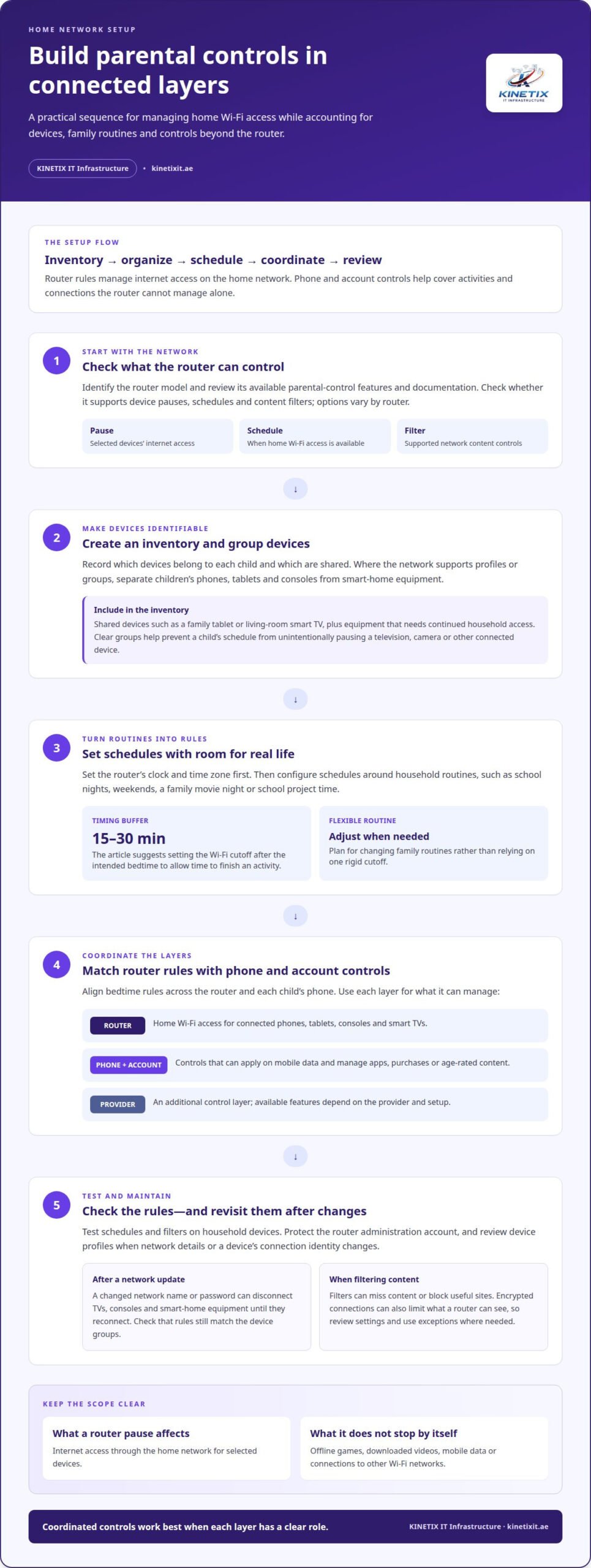
A professional can apply router rules to phones, tablets, gaming consoles and smart TVs connected to home Wi-Fi. The setup starts with an inventory of devices, then groups them into profiles and assigns schedules and network rules that suit household routines.
-
Assess Router-Level Parental Controls
Start by reviewing the router’s parental-control features and the devices using the home broadband connection. A professional checks which controls can pause selected devices, set schedules or filter content across home Wi-Fi. Router rules can also reach consoles and smart TVs without parental-control apps. They affect internet access, not the device itself, so offline games and downloaded videos may still work.
-
Separate Children’s Devices from Smart-Home Equipment
Where the network supports profiles or device groups, separate children’s phones, tablets and consoles from smart-home equipment. This allows a school-night schedule for a child’s devices without disrupting connected household equipment. Identify each device clearly and avoid broad rules that could unintentionally pause a television, camera or other connected device.
- Create a device inventory with the household before assigning controls. Record which devices belong to each child and which are shared, such as a family tablet or living-room smart TV. Separate profiles help distinguish schedules and filters for each child. Note school project times, weekend routines and devices that need continued access for household use.
- Set the router’s pause and schedule options for selected devices. If the router offers a feature such as Family Time, use it to disconnect chosen devices from the internet at agreed times. The available controls depend on the router. A pause does not lock a phone or disable Wi-Fi, and it will not stop offline activities or cover mobile data.
- Plan to reconnect devices after network updates. A changed network name or password can disconnect smart TVs, consoles and smart-home equipment until each device reconnects. Document device groups and check that router rules still match them after a change. Private or randomised Wi-Fi addresses can also complicate rules tied to a device’s network address, so review profiles if a device’s connection identity changes.
Router controls alongside phone-based parental controls
Combine home-router rules with controls on children’s phones and accounts. Each layer covers different connections or activities, so tailor the setup to the household’s devices and routines.
-
Assess Router Features and Documentation
Identify the router model and review its manufacturer or internet provider documentation. Parental-control features vary, so check which options support device schedules, pauses and content filters. Consider how the household uses phones, consoles and tablets. Router controls apply on the home network, but not when a phone switches to mobile data or another Wi-Fi network.
-
Access Router Administration Safely During Professional Setup
Arrange access to the router’s administration account for setup. Do not share its password in messages or leave it exposed. Use the authorised account to configure network rules, then protect it with a separate parent passcode where supported. Secure recovery details matter too: a protected administrator account makes it harder for a child to change schedules or disable filters.
- Align a bedtime schedule across the router and each child’s phone. The router manages internet access over home Wi-Fi, while phone and account controls can apply on mobile data and govern apps or purchases. Consoles, phones and tablets may each have their own parental settings. Coordinating bedtime rules across these layers reduces gaps when a device changes connection.
- For an ASUS router, consult the model documentation and administration interface to identify the parental-control features available on that device. Configure only relevant options, such as supported schedules or network filters, then test them on household devices. ASUS models and software versions differ, so do not assume every menu or control appears on every router.
- Use router rules for network access and device or account controls for apps, purchases and age-rated content. Encrypted connections generally prevent a router from showing the full contents of web pages, messages or every in-app action. A filter can shape access to network services, but it does not replace controls within a child’s phone or service account.
When administration access, device groups or Wi-Fi rules need coordinated configuration, professional router configuration can help bring the network layer together with household needs.
Professional Setup of Online Time Limits and Extra-Time Options
Translate family routines into router schedules and practical exceptions. Set the router’s clock and time zone correctly: otherwise, a schedule may run at the wrong time.
- Set the router clock and time zone before creating schedules. Then define the intended bedtime and configure the Wi-Fi cutoff fifteen to thirty minutes later. This buffer can give a child time to finish an activity before internet access pauses. The professional checks the displayed schedule against the household’s local time, not just the device’s clock.
- Create separate schedules for school days and changing family routines. Weekday limits may differ from a family movie night or an evening spent on a school project. Structure the rules so parents can adjust them for these occasions instead of relying on one rigid cutoff that repeatedly disrupts planned activities.
- Configure extra time through the router’s supported controls, where available. Depending on the interface, this may mean extending a schedule or temporarily restoring access to a selected device. Keep each exception limited to the relevant device and occasion. Parents should know which control changes a schedule and which simply pauses or resumes access.
- Pair router limits with controls on the child’s phone or tablet. A home-router schedule applies to that network, not to mobile data, hotspots or other Wi-Fi connections. Device controls can manage app use and account settings beyond the router’s reach. A pause does not lock a device, so offline games and downloaded videos may remain available.
- Choose filtering rules with their limits in mind. Network-level DNS filtering can apply settings such as SafeSearch and YouTube Restricted Mode across devices without configuring each one separately. VPNs, encrypted DNS and alternative connections can affect DNS-based enforcement. Filters can also miss material or block legitimate school resources, so provide a clear way to request an exception.
- Test the schedule against a child’s actual devices before relying on it. Confirm that a selected phone loses home internet access at the scheduled time, while any approved exception works as intended. No parental-control tool is 100% effective, and a router pause won’t disable offline activity. Recheck the rules after router changes, new devices or operating-system updates.
Professional Setup for Blocking Websites and Content Categories
First decide which categories and specific sites the household needs to restrict. Because usage reports can reveal browsing patterns, limit access to those records and secure the router’s administration account.
-
Review Usage Reports and Blocked Attempts During Setup
Review the router’s reporting tools to see which connected devices generate activity summaries or records of blocked attempts. Weekly summaries of top sites and blocked attempts can help parents identify unfamiliar services and adjust rules. Reports may show connection details without revealing the full contents of encrypted pages, messages or in-app activity. Keep reviews focused on safety and household rules, not unnecessary surveillance.
-
Set Up Blocking for Specific Websites
Add a clearly identified website to the router’s block list when a specific address needs restricting. The professional tests the rule on the intended child profile and checks whether it affects other connected devices. A block can miss related pages or stop a legitimate resource, such as a school research site. Provide a straightforward way for a child to request an exception.
- Choose content categories that match the household’s needs instead of applying every available restriction. For example, a parent may want to restrict adult categories while leaving educational resources accessible. Category filters classify sites broadly, so they can miss inappropriate material or block useful pages. A professional tests representative sites and adjusts categories when the results interfere with schoolwork or ordinary family use.
- Apply network-level DNS filtering where the router or network supports it. This can enforce Google SafeSearch and YouTube Restricted Mode across connected devices without setting them up individually. DNS filtering directs or limits domain requests rather than inspecting every page. VPNs, encrypted DNS and alternative connections can affect enforcement, so treat these rules as one layer of protection.
- Manage app traffic at the layer that can control it. Router settings may offer schedules or filters for network access, while a phone’s operating system and account controls can manage apps and purchases. A router generally cannot see the full contents of encrypted app activity. For example, use account controls for age-rated app access and network rules for a device’s internet schedule.
- Secure reporting access before the setup is complete. Use a separate parent passcode where supported, protect recovery details and avoid sharing administrator credentials with children. Explain that reports help review blocked attempts, not read every private message. If a weekly summary shows repeated blocks for a school resource, adjust the specific rule instead of disabling all content categories.
Home internet provider parental controls
UAE internet regulations and family-set parental controls are separate considerations. At home, provider, router and device settings can work together, but no single filter replaces the others.
- Identify which controls are available through the home internet provider and which belong to the router. Provider tools may filter internet access, while router controls can schedule or restrict selected devices on the home network. Features vary, so review the provider’s and router manufacturer’s documentation before changing settings.
- Enable provider filtering only for the household’s intended needs. A content filter may reduce the chance that children, particularly younger children, encounter upsetting material, but it can miss content or block useful websites. Keep a way to request an exception, for example, when a blocked page is needed for schoolwork.
- Protect the parent controls with a separate passcode where supported, and secure the recovery details. This keeps the administration settings distinct from a child’s screen unlock code. A professional can also help parents understand which account or interface manages each rule, so a change to provider settings doesn’t get confused with a router schedule.
- Review guest Wi-Fi as part of the setup. Give it a different password from the main network, apply a speed limit and enable adult-category blocking where the router supports those controls. Children may use an unrestricted guest network to bypass household rules, so the professional checks that its settings do not undermine the main network’s protections.
- Keep device and account restrictions alongside provider filtering. A child may use a phone, tablet, console or streaming account with its own controls for apps, purchases or age-rated content. Provider filters manage internet access at a different layer. Combining the settings helps address gaps without expecting a broadband filter to manage every device function.
- Review the configuration after a provider or router change. A factory reset on a provider-managed router can erase internet, telephone and other configuration, so do not attempt one casually. Keep network equipment and device software updated as supported, then review parental-control rules after changes.
For help coordinating household Wi-Fi coverage with connected devices, consider professional Wi-Fi access point installation.
KINETIX IT Infrastructure: Complete Villa Networking
KINETIX IT Infrastructure provides Complete Villa Networking for households that need their home network configured as a coordinated system. If inconsistent Wi-Fi coverage or disconnecting devices make parental-control rules difficult to apply, professional network support can address the underlying setup.
Wi-Fi Installation & Setup and Wi-Fi Troubleshooting & Repair can help establish a stable connection for phones, tablets, consoles and smart TVs across the home. In weak-signal areas, Wi-Fi Dead Zone Fixing can improve coverage where devices need reliable access. An organised network makes router controls easier to apply consistently, though device and account settings remain separate layers.
Contact KINETIX IT Infrastructure to discuss Complete Villa Networking for your home.
Make Your Home Network Easier to Manage
Family routines and connected devices change, so plan how the network will adapt. Decide which changes should prompt a review, such as a new phone, a router replacement or unreliable Wi-Fi coverage in a room. This gives a professional a clear starting point for keeping the setup suited to your home, rather than relying on rules that no longer match daily life.
For families arranging parental controls setup on a residential home network in Dubai, KINETIX IT Infrastructure provides Wi-Fi Installation & Setup and Wi-Fi Troubleshooting & Repair. If weak coverage creates gaps in access, Wi-Fi Dead Zone Fixing can address the network issue as part of the wider setup.
Contact KINETIX IT Infrastructure to discuss the network support that fits your home. A considered setup can make everyday connectivity feel more manageable.
Frequently Asked Questions
Can a professional set up immediate internet pauses for a child’s devices, rather than relying on schedules?
Yes. If the router supports the control, a professional can immediately pause internet access for selected devices. The pause applies to their home Wi-Fi connection, not the phone or tablet itself. For example, a parent can pause a child’s tablet after an agreed screen-time reminder, then restore access when appropriate. How quickly the action takes effect depends on the router interface.
Do I need new equipment to do this properly?
Not always. Existing equipment may already support device profiles, schedules or filtering, allowing a professional to configure it without replacing the router. For parental controls setup on a residential home network in Dubai, the decision depends on router capabilities, network layout and connected devices. New equipment may be considered if the current router lacks needed controls or its coverage is inconsistent in parts of the home.
What if a smart device ends up in the kids’ group by mistake?
A professional can remove a misassigned smart device from the children’s profile, place it in the appropriate group and test the change. For example, moving a shared television out of a child’s profile can prevent a bedtime rule from interrupting family viewing. Clear device names help distinguish similar entries, such as two tablets or several smart plugs, and reduce future grouping errors.
How does a professional set up parental controls on a home Wi-Fi router?
A professional identifies the router model, administration access, connected devices and family requirements. For parental-controls setup on a residential home network in Dubai, they configure the controls available on that router and test them on representative devices. For example, they can confirm that a child’s tablet follows its assigned rule while a shared television remains unaffected. They also explain which settings parents can adjust later.
Which router settings can a professional configure to block websites, apps, and adult content?
A router may offer website or category filters, DNS-based filtering, schedules and device-level internet restrictions. Network filtering can apply to connected devices, while app access, purchases and age-rated downloads usually require controls on the device or account. For example, a router rule may restrict a website while device settings manage app downloads. Encrypted activity limits what the router can inspect.
How can a professional configure Wi-Fi schedules and screen-time limits for children?
A professional maps household routines into device-specific Wi-Fi schedules and sets the router’s clock and time zone correctly. Extra time depends on the router’s available controls and can be managed through its interface when supported. Distinguish a child’s own phone from shared devices, such as a family tablet used for homework or video calls, so schedules apply to the intended devices.
How do parental control apps compare with router-based controls?
Router controls apply to devices using the home network, including consoles and smart TVs without dedicated apps. Device apps and account settings can travel with a child’s phone and manage app use or purchases beyond home Wi-Fi. A combined setup can cover more situations, but its rules need coordination. For example, align a phone’s bedtime limit with the household’s router schedule to avoid conflicting settings.
What are the privacy and security risks of monitoring children’s internet use?
Usage reports can reveal children’s browsing patterns, so limit access to records and secure the router’s administrator account. Encrypted connections also mean the router generally cannot show the full contents of pages, messages or all in-app activity.