
The fastest internet plan may not solve the problem behind a dropped video call. In a Dubai home office, the cause could be weak Wi-Fi coverage, interference, or a device relying on wireless when a cable would be more dependable. A well-planned Home Office Network Setup brings together your internet service, network equipment, and workspace layout.
Choosing between Wi-Fi, Ethernet, mesh, or a hybrid setup depends on how you work and how your home is arranged. The right approach should support calls, cloud applications, and connected devices without adding equipment you don’t need. Security matters too, especially when work devices share a home network.
This guide compares common home office network options and explains how to choose one for your daily needs. You’ll learn how wired and wireless connections can work together, what to check when improving coverage, and when professional assessment or installation may help make your setup more reliable.
Key Takeaways
- Choose Wi-Fi, mesh, Ethernet, or a hybrid setup based on your workspace, home layout, and need for flexibility.
- A strong Wi-Fi signal alone doesn’t confirm a dependable connection. Check stability in your office, device use, and household demand.
- Plan your Home Office Network Setup by mapping work devices, testing the workspace, choosing connection types, and configuring the network.
- In Dubai homes and villas, office location, router distance, and practical cable routes can shape the right approach.
- Consider professional assessment if connection issues keep returning or your home layout makes coverage and configuration difficult to manage.
Home Office Network Setup: What Reliable Work Connectivity Requires
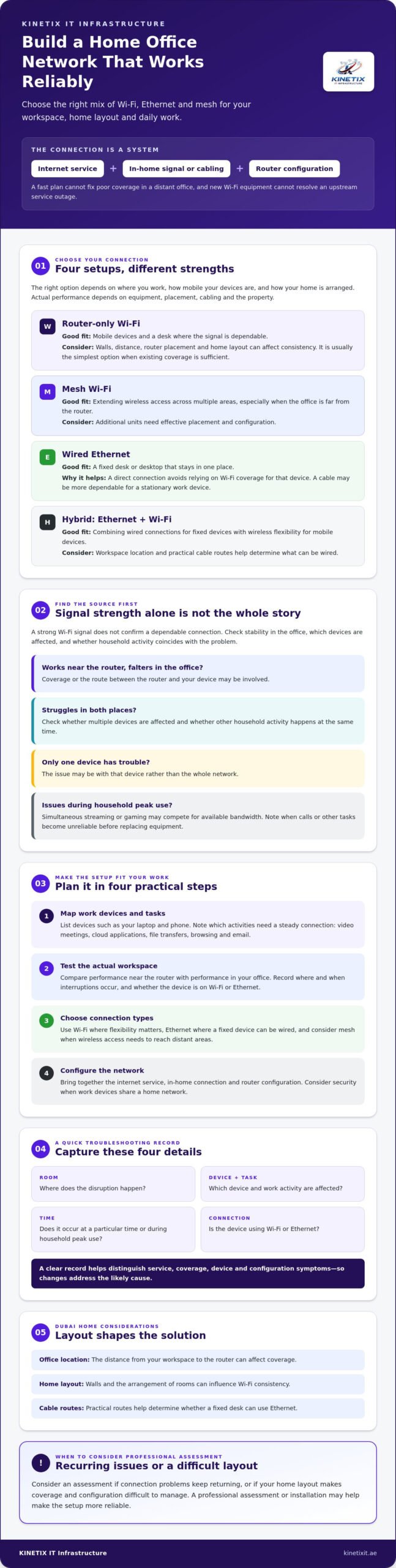
A home office network connects work devices, such as a laptop and phone, to your router and the internet service entering your home. It can use Wi-Fi, Ethernet, or both. This is a practical example of a home area network (HAN), where connected devices communicate through wired or wireless links.
For remote work, dependable connectivity helps video meetings stay clear, cloud applications respond smoothly, files transfer without interruption, and remote access remain available. These outcomes depend on several parts working together: your provider’s internet service, the in-home signal or cabling, and the router’s network configuration. A fast plan can’t compensate for poor coverage in a distant office, and new Wi-Fi equipment can’t resolve an upstream service outage.
For a general overview of how devices connect across a network, watch this educational video:
Which work tasks place the greatest demands on a home network?
Video meetings need a steady connection, while cloud applications rely on consistent responsiveness as you open and save work. Large file transfers can use substantial capacity while they’re in progress. Browsing and email are usually less demanding, but simultaneous streaming or gaming elsewhere in the home may compete for available bandwidth. Before buying equipment, note which tasks suffer and when. For example, if calls become unreliable only when several household devices are active, record that pattern rather than assuming the router needs replacing.
Is the internet plan or the home network causing the problem?
Compare performance near the router with performance in your office. If the connection works well nearby but falters in the workspace, coverage or the route between the router and your device may be involved. If it struggles in both places, check whether the issue affects multiple devices and whether other household activity coincides with it. A problem limited to one device may point to that device rather than the whole network.
Keep a simple record before changing your setup:
- Room: Where does the disruption happen?
- Device and task: Which device and work activity are affected?
- Time: Does it occur at a particular time or during household peak use?
- Connection: Is the device using Wi-Fi or Ethernet?
This checklist helps distinguish service, coverage, device, and configuration symptoms. A considered Home Office Network Setup starts with evidence, so changes address the likely cause instead of adding equipment without a clear need.
Compare Home Office Network Setups: Wi-Fi, Ethernet, Mesh, or Hybrid
The best Home Office Network Setup depends on where you work, how mobile your devices are, and how your home is laid out. A laptop used around the house benefits from Wi-Fi flexibility; a desktop that stays at one desk may benefit from a wired connection. Mesh Wi-Fi can help extend coverage, while a hybrid approach combines wired and wireless connections.
Use this comparison as a starting point. Actual performance depends on equipment, placement, cabling, and the property. For broader coverage planning, see this Dubai villa Wi-Fi installation guide.
| Setup | Reliability | Coverage | Installation | Flexibility and fixed-desk suitability |
|---|---|---|---|---|
| Router-only Wi-Fi | Can work well near the router, but walls and distance may affect consistency. | Depends on router placement and the home layout. | Usually the simplest option if existing coverage is sufficient. | Flexible for mobile devices; suitable for a desk if the signal is dependable there. |
| Mesh Wi-Fi | Can improve access in distant areas when mesh units are positioned effectively. | Designed to extend Wi-Fi across multiple areas. | Requires placing and configuring additional units. | Maintains wireless flexibility; useful when the office is far from the router. |
| Wired Ethernet | Offers a direct connection that avoids reliance on Wi-Fi coverage for that device. | Reaches locations served by installed cabling and sockets. | May require cable routing and suitable socket placement. | Well suited to a fixed desktop, dock, or other stationary work device. |
| Hybrid network | Uses wired links for selected fixed devices and Wi-Fi for others. | Combines cable routes with wireless coverage. | Requires coordinating router configuration, cabling, and Wi-Fi. | Balances a dependable desk connection with mobility around the home. |
When is Ethernet the better choice for a home office?
Consider Ethernet for a stationary desktop or dock, particularly if calls or work sessions are disrupted by inconsistent Wi-Fi. The practical route depends on the office location, property structure, and where a socket can be placed. If you’re planning cable runs, this structured cabling guide offers further context.
When should you consider mesh Wi-Fi or a hybrid setup?
Mesh may suit an office beyond reliable router coverage, though placement and the home’s layout matter. A hybrid arrangement can reserve Ethernet for fixed work equipment while phones and laptops stay on Wi-Fi. Compare possible coverage approaches in this UAE villa mesh Wi-Fi guide.
If it’s difficult to choose between cabling and wider Wi-Fi coverage, a professional assessment can help relate the property layout to your work needs. Explore home and villa network setup support.
Is Your Current Wi-Fi Enough? Assess Reliability, Security, and Work Needs
A full Wi-Fi signal bar doesn’t guarantee a stable connection. Signal strength shows how well a device reaches the router, but work performance can also depend on interference, network congestion, device condition, and the internet service itself. A strong signal can still accompany frozen calls or slow applications.
Assess the connection where you actually work. Note whether coverage is consistent in the office, whether interruptions happen during particular tasks, how many devices are connected, and whether household streaming or gaming coincides with problems. Your Home Office Network Setup should support your work pattern and your household’s typical network use, not just look fast in a single test.
In brief: Coverage is whether the signal reaches your workspace; capacity is whether the network can handle connected devices and activity; an internet-service problem is an interruption or limitation beyond the home network.
What should you check before replacing your router?
Keep a short log of where interruptions happen, which device and application are affected, and whether the issue occurs at a particular time. Check whether other rooms and devices have the same symptoms. If you can connect a suitable device by Ethernet, compare its performance with Wi-Fi in the same location and during similar use. A stable wired connection alongside weak office Wi-Fi may point to local wireless coverage rather than the internet plan.
Also review the router’s location and the number of active devices. A router placed far from the office or behind obstacles may provide less consistent coverage there. If several rooms and devices experience trouble at once, the cause may differ from an issue isolated to one laptop. These checks help you identify a pattern before replacing equipment.
How should a home office network support secure remote work?
Follow your employer’s instructions for VPN use, approved devices, account access, and handling work data. A VPN can protect the connection between your device and workplace resources, but it won’t strengthen weak Wi-Fi coverage or correct a failing internet service. Security and connectivity are related parts of remote work, but one doesn’t substitute for the other.
Support those requirements with sound device practices: keep operating systems and applications updated, use strong account credentials, enable multi-factor authentication where available, and lock devices when unattended. These steps apply to work devices and accounts; they don’t mean that any particular router feature makes a network secure. No single network configuration can remove every security risk, so follow your organisation’s guidance and keep both devices and access practices in view.
Plan a Home Office Network Setup for Your Dubai Home
A clear plan starts with the actual workspace, not a shopping list. In a Dubai apartment or villa, the office may sit beside the router or in a room across the property. That distance, available internet sockets, and practical cable routes all influence whether Wi-Fi, Ethernet, or a combination is the best fit. Use this four-step process to prepare for configuration or an assessment.
- 1. Map devices. List work laptops, desktop computers, phones, printers, and other connected devices. Note where each is used and whether it can connect by Wi-Fi, Ethernet, or either.
- 2. Test the workspace. Check the connection from the office, not only beside the router. Record dropouts, slowdowns, or dead zones, along with the time and work activity.
- 3. Choose connection types. Identify stationary devices that could use Ethernet and devices that need Wi-Fi flexibility. Consider whether the office location calls for improved wireless coverage.
- 4. Configure and review. Check router placement and settings, then test work devices in their usual locations. Reassess during typical household use to see whether the setup supports calls and other demanding tasks.
How do you map the office, devices, and connection points?
Sketch the relevant rooms and mark the router, office desk, internet sockets, and areas where coverage is unreliable. Add each device and its preferred connection. In a villa, include the floor and room locations; in an apartment, note walls or distance between the router and workspace. Also record household activity that overlaps with calls, such as streaming or gaming. This simple map helps explain the issue clearly during a local assessment.
What should you decide before installation or configuration?
Decide which fixed devices would benefit from wired connections, then identify the main requirement: broader Wi-Fi coverage, Ethernet cabling, router configuration, or troubleshooting. Note constraints such as a desk far from the router or cable routes that may need careful planning. Installation needs depend on the property and layout, so avoid assuming a particular cost or completion time before an assessment.
Seek professional advice if cabling is complex, coverage gaps remain after basic adjustments, or the cause of recurring interruptions is unclear. KINETIX IT Infrastructure supports Dubai homes and villas with Wi-Fi setup and optimization, Ethernet and network cabling, and router and switch configuration. Explore home network support to learn more about the available services.
When Professional Home Office Network Setup in Dubai Makes Sense
A DIY router change may be enough if the issue is limited to an older router, basic settings, or a small coverage gap that improves after repositioning equipment. Repeated dropouts, unreliable Wi-Fi in the office, or problems spanning several rooms call for a closer look. Replacing equipment without understanding the cause can leave a coverage, cabling, or configuration issue unresolved.
KINETIX IT Infrastructure supports Dubai homes and villas with Wi-Fi setup and optimization, Ethernet installation, and router and network switch configuration. These elements can work together: a wired connection may suit a fixed desk, while planned Wi-Fi supports mobile devices and other rooms. The right scope depends on the property and how you work.
What can a professional network assessment help clarify?
An assessment can help identify whether the main concern is Wi-Fi coverage, cabling, router or switch configuration, or network troubleshooting. The office location, router position, available sockets, and practical cable routes all shape the options. Sharing specific symptoms and work needs helps match potential changes to the home rather than defaulting to a one-size-fits-all setup. Performance outcomes should be discussed after the property and existing network are assessed.
How to prepare for a home network consultation in Dubai
Before discussing your Home Office Network Setup, gather a few practical details. They give a network professional a clearer picture of your workspace and recurring issue:
- Property type: Say whether you live in a villa, apartment, or another residential property.
- Layout: Describe the office location, router position, and distance or rooms between them.
- Devices: List the work devices you use and whether they connect by Wi-Fi or Ethernet.
- Symptoms: Note what happens, where it happens, and which work tasks are affected.
This information can help clarify whether you need better coverage, a wired connection, configuration support, or troubleshooting. It also helps set realistic expectations: recommendations and scope depend on the property and network, so specific results shouldn’t be promised before assessment.
If recurring connection issues are interrupting your work, learn about home office network support from KINETIX IT Infrastructure. Sharing your workspace, property layout, and connectivity needs can help start a focused conversation about suitable home networking support.
Build a More Dependable Home Office Connection
A reliable Home Office Network Setup starts with the needs of your workspace, not simply the newest router. Match Wi-Fi, Ethernet, mesh, or a hybrid approach to your room layout and work devices. Then check where interruptions occur so you can distinguish coverage or configuration issues from internet-service problems.
For Dubai homes and villas, router position, office location, and practical cable routes can shape the right solution. KINETIX IT Infrastructure provides residential Wi-Fi and network services, including coverage support, Ethernet installation, and router and switch configuration. A professional assessment can help clarify what may address recurring issues, without assuming one setup suits every property.
To discuss your workspace and connectivity needs, contact KINETIX IT Infrastructure about your home office network setup. A clear plan gives you a more considered foundation for focused work and online collaboration.
Frequently Asked Questions
Is Wi-Fi enough for a home office?
Wi-Fi is often enough if it provides a stable connection in your office and supports your work devices and household activity. Test it where you work, especially during calls or other tasks that regularly use the internet. If the connection drops in one room but works well near the router, the issue may be local coverage rather than your internet plan. A wired connection is another option for a fixed desk.
Should I use Ethernet or Wi-Fi for work-from-home calls?
Ethernet can be a good choice for a stationary computer because it connects directly to the router or network socket without relying on Wi-Fi coverage. Wi-Fi offers flexibility for laptops and mobile devices, but performance can vary with distance, obstacles, and network activity. Try your current connection during a typical call. If Wi-Fi is unreliable at your desk, compare it with Ethernet if your device and home have a suitable connection.
Do I need a mesh system for my home office?
Consider mesh Wi-Fi if the office is far from the router or coverage is unreliable in several parts of your home. It isn’t automatically necessary: first check whether repositioning the router or using a wired connection at the desk would address the problem. Mesh placement and property layout affect results, so identify where coverage fails before choosing equipment. A home office in a compact space may not need additional coverage devices.
Can I use a VPN on my home office network?
Yes, you can use a VPN for work if your employer supports or requires it. Follow your organisation’s instructions for VPN access, approved devices, and work accounts. A VPN can protect the connection to workplace resources, but it won’t fix weak Wi-Fi, network congestion, or an internet service outage. Keep devices and applications updated, use strong account credentials, and enable multi-factor authentication where available as part of your security routine.
How do I improve video calls in my home office?
Start by checking the connection in the room where you take calls, not only beside the router. If possible, try Ethernet for a fixed computer; otherwise, check router placement and whether household streaming or gaming overlaps with meetings. Close applications and downloads you don’t need during a call. If several devices or rooms experience interruptions, record when the issue occurs and check whether the internet service or home network may be responsible.
When should I hire a professional for a home office network setup in Dubai?
Consider professional help if connection problems keep returning, coverage gaps remain, or cable routing and network configuration are beyond a straightforward router adjustment. KINETIX IT Infrastructure provides residential Wi-Fi setup, coverage support, Ethernet installation, and router and switch configuration for homes and villas in Dubai. An assessment can help determine whether the issue involves coverage, cabling, configuration, or troubleshooting, and what approach fits your property.
Can a home office network support several connected devices at once?
Yes, a home network can connect work computers, phones, printers, and household devices at the same time, but performance depends on the internet service, network setup, and what those devices are doing. A video call alongside streaming or gaming may put more demand on the connection than email and browsing alone. If work slows during busy periods, note the number of active devices and recurring tasks before changing your setup.
One Response