
A late video doorbell alert isn’t always caused by the doorbell itself. A delay of about 1-2 seconds can be normal while a notification is processed, but longer delays can involve Wi-Fi coverage, phone settings or app restrictions. Motion alerts and button-press alerts are separate event types, so test them independently.
It’s frustrating when a notification arrives after someone has already reached your door. To solve video doorbell delay notification issues, first identify which alert is late and whether the delay happens consistently. This helps narrow down whether the cause involves motion detection, the button-press alert, the phone, or the network connection.
This guide shows you how to compare both notification types, review settings that affect delivery, and assess whether weak Wi-Fi near the entrance is contributing. You’ll also find practical troubleshooting steps, including when router placement or better home Wi-Fi coverage may help your doorbell respond more promptly.
Key Takeaways
- Test motion alerts and button-press alerts separately to identify which notification path is delayed.
- A recorded clip doesn’t prove that a push alert reached your phone; app permissions and phone settings can affect delivery.
- Check the doorbell’s Wi-Fi connection near the entrance, since weak coverage can contribute to delays.
- Review notification permissions, Focus or Do Not Disturb settings, and background restrictions before changing network settings.
- If delays continue, a closer look at home Wi-Fi coverage or the video intercom setup may help pinpoint the issue.
Does a recorded clip prove that a push notification was sent?
No. A clip confirms that the doorbell recorded an event, but it doesn’t show whether an alert reached your phone. To fix delayed video doorbell notifications on iPhone or Android, check app permissions, phone settings, and the connection at both ends.
-
Check app permissions and phone settings
Open the doorbell app on your iPhone or Android device and confirm that notifications are enabled. Then open your phone’s settings and allow alerts, sounds, and lock-screen notifications where available. A recorded clip can appear in the app even when phone settings mute or block its alerts.
Check Focus or Do Not Disturb settings on iPhone, along with scheduled quiet hours in the doorbell app. On Android, review battery or background restrictions that might pause app activity when the phone is idle. Menu names vary by manufacturer, so look for the app’s notification and battery settings rather than relying on instructions for another model. The United Nations Procurement Division notes that delivery can depend on phone settings, operating-system restrictions, internet connectivity, and third-party notification services.
-
Check doorbell Wi-Fi signal strength
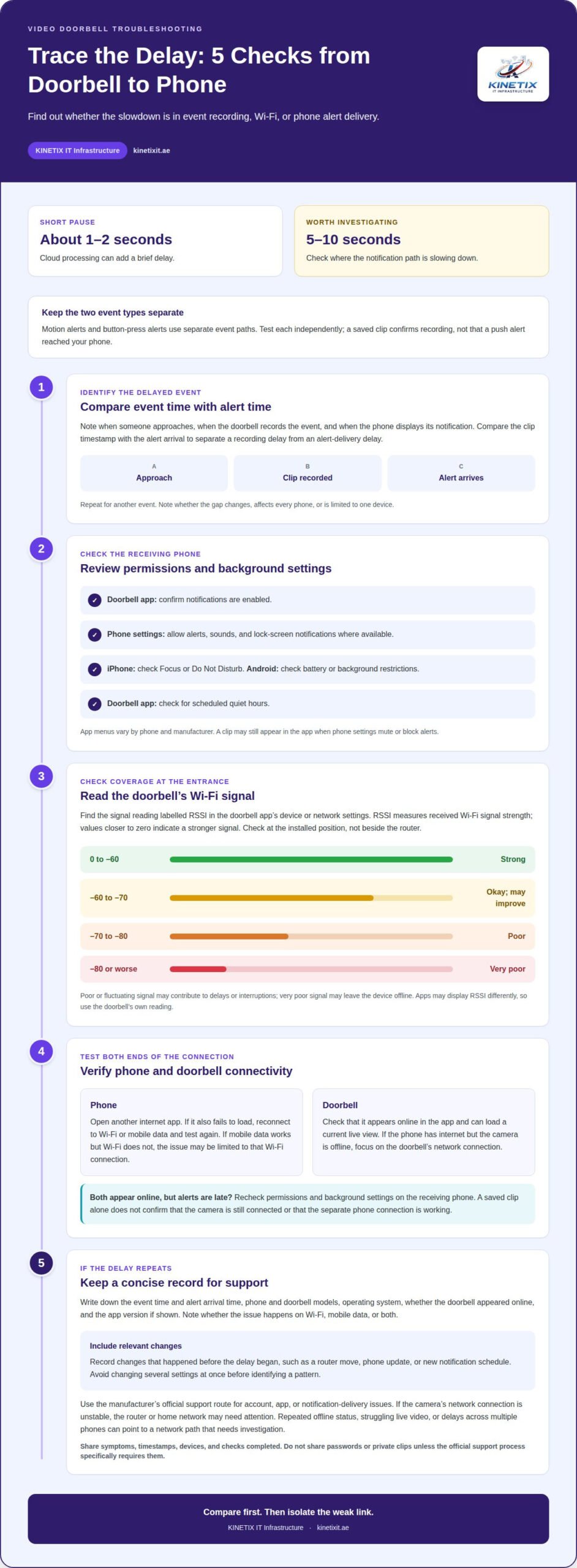
Open the doorbell app’s device or network settings and find the signal reading labelled RSSI. RSSI measures received Wi-Fi signal strength; values closer to zero indicate a stronger signal. A reading from 0 to -60 RSSI is described as strong, while -60 to -70 RSSI is considered okay but may be improved.
Compare the reading at the doorbell’s installed position, not beside the router. A reading from -70 to -80 RSSI is poor and may contribute to delays or interruptions; -80 RSSI or worse is very poor and may leave the device offline. Some guidance describes -30 dBm to -67 dBm as a suitable signal range, with readings over -67 dBm very poor. Because apps may display RSSI differently, use the doorbell’s own reading and watch for a weak or fluctuating connection.
-
Verify phone and camera connectivity
Check the smartphone or tablet’s connection by opening another app that uses the internet. If other apps also fail to load, reconnect the device to Wi-Fi or mobile data and test the doorbell alert again. If the phone works on mobile data but not Wi-Fi, the problem may be limited to that Wi-Fi connection.
Next, check the camera or doorbell’s status in its app. Confirm that it appears online and can load a current live view. A saved clip doesn’t prove the camera is still connected or that the separate connection to your phone is working. If the phone has internet access but the camera appears offline, focus on the doorbell’s network connection. If both devices appear online but alerts remain late, review permissions and background settings on the receiving phone.
Why is my video doorbell on a delay?
A short pause can be normal: cloud processing may add about 1-2 seconds. Longer delays, such as five to 10 seconds, call for checking where the notification path is slowing down.
- Compare the event time with the alert time. Note when someone approaches, when the doorbell records the event, and when the phone displays its notification. A clip timestamp can help distinguish a recording delay from an alert-delivery delay. Repeat the observation during another event and note whether the gap stays consistent or changes.Also note whether the delay affects every phone or just one. If two household members receive alerts at different times, that suggests a device-specific setting or connection, rather than proving the camera recorded late. Keep the comparison factual and avoid changing several settings before you identify a pattern.
- Keep a concise record for support. Write down the event time, notification arrival time, phone model, operating system, doorbell model, and whether the doorbell appeared online. Include the app version if it’s shown in the app settings. These details help support teams compare the camera’s recording and network status with the receiving phone’s behaviour.Note what changed before the delay began, such as a router move, phone update, or new notification schedule. Record whether the issue occurs on Wi-Fi, mobile data, or both. Don’t share account passwords or private video clips unless the official support process specifically requires them.
- Escalate when basic checks don’t explain repeated delays. Seek professional doorbell support if the camera repeatedly goes offline, live video struggles to load, or notifications remain late after you’ve reviewed permissions and phone connectivity. Repeated delays across multiple phones may also warrant checking the camera’s network path instead of repeatedly adjusting one handset.Describe the pattern and checks you’ve completed. For example, explain that clips appear promptly but alerts reach two phones late. This contrast gives support a useful starting point: recording may work while delivery to the phones needs investigation.
- Contact the right support channel with your notes. Use the doorbell manufacturer’s official app or support route for account access, notification delivery, or app-specific faults. If the camera’s network connection is unstable, the router or home network may need attention. Describe the symptoms, timestamps, devices, and tests you’ve completed instead of requesting a particular technical fix.For persistent home-network problems affecting a doorbell, request network troubleshooting support to help assess the connection path. Share the recorded pattern and whether the camera, phone, or both appear affected. This makes the next diagnostic step more precise.
Improving router placement and WiFi coverage
Wi-Fi can weaken between a router and a doorbell, especially across walls or floors. Start by adjusting placement, then check the doorbell’s connection at the entrance.
- Map the router-to-doorbell route. Note the router’s location and how many walls, floors, or closed doors lie between it and the entrance. For example, a router in a back room may have a poor signal path to a doorbell at the front gate. This layout helps you assess whether distance or an obstacle may be affecting coverage.Keep the router within 200 feet of the video doorbell for a more reliable connection. Treat that distance as a placement guide, not proof that the signal will be strong through every villa wall or floor.
- Test a closer router position. If the router can be moved safely, try placing it 10-15 feet closer to the doorbell. Keep it in an open, central position rather than inside a cabinet or behind large furniture. After moving it, check the doorbell’s connection from its installed location and compare the result with the earlier reading.Change one placement factor at a time. Moving the router and changing other network settings together makes it harder to tell which adjustment affected the connection.
- Consider coverage for a distant entrance. If you can’t move the router closer, a mesh Wi-Fi system may extend coverage toward the doorbell. Place a mesh unit between the router and entrance, where it can still receive a usable connection from the main router. Then check whether the doorbell connects through the expanded coverage.A mesh unit beside an offline doorbell may not help if it can’t connect reliably to the router. Check the device’s network status to see whether the added coverage reaches both the main network and the entrance.
- Review the Wi-Fi band. Many video doorbells are recommended for the 2.4 GHz band because it offers better range and wall penetration than 5 GHz. Check the doorbell’s network settings and router configuration before changing bands. Keep the doorbell and phone connected to working internet access while testing an alert.Don’t assume a nearby 5 GHz signal will work better through several walls. The suitable band depends on the doorbell’s supported settings and the home’s layout.
- Retest from the entrance. After each adjustment, check the doorbell connection where it’s installed and trigger a test event. Record whether the live view loads and the alert arrives promptly. If placement changes don’t resolve weak coverage across the home, the network may need broader coverage improvements.
Causes of delayed doorbell notifications
Delays can occur at the router, doorbell, phone, or cloud service. Test each part separately before changing network settings.
-
Review router frequency and firewall settings
Check which Wi-Fi band the doorbell uses in its app or router settings. Many doorbells work better on 2.4 GHz, which typically reaches farther and passes through walls better than 5 GHz. A 5 GHz connection may be less suitable when the router is distant or separated by walls.
Review firewall settings for recent changes that may restrict the doorbell app’s connection. Don’t add port-forwarding rules just because a push alert is missing, as opening unnecessary ports can introduce security risks. For organizations managing smart endpoints alongside broader IT environments, cybersecurity specialists like CyberOne provide managed detection and threat monitoring to keep networks secure. Test an alert after each settings change so you can tell whether the router configuration affected delivery.
-
Check cloud service and subscription effects
Check the doorbell app’s service status and notification settings alongside your account’s plan details. Cloud processing can add about 1-2 seconds while an event is prepared for delivery. Internet connectivity and third-party notification services can also affect whether alerts reach a phone promptly.
Review which functions your plan includes, but don’t assume that changing a subscription will speed up alerts. Compare the app’s event record with the time each phone receives its push notification. If events are recorded but alerts lag, focus on notification delivery rather than assuming recording storage caused the delay.
- Test each part of the alert path. Trigger a motion event, then note when the doorbell records it and when the phone displays an alert. Repeat the test with a button press, since these are separate event types. Keep the times and results in a short log rather than relying on memory.Check the doorbell’s online status and live view after each test. Then test the receiving phone’s internet connection by opening another online app. If the camera is offline, investigate its network connection. If the camera works but the phone has no internet, focus on the phone’s connection.
- Compare results across devices and connections. If two phones receive the same alert at different times, review their individual notification permissions and background restrictions. If one phone receives alerts promptly on mobile data but late on home Wi-Fi, the network path may be involved.If both phones experience delays while the doorbell records events promptly, examine the app’s cloud delivery status and internet connection. Delays across the camera, phones, and connections suggest a broader service or network issue. Change one setting at a time, then repeat both event tests to see whether the result changes.
How to troubleshoot delayed video doorbell notifications step by step
Make one change at a time, then test both event types. A measured sequence can help solve video doorbell delay notification issues without changing settings at random.
- Record a baseline. Trigger a motion event and a button press separately. Note when each event appears in the doorbell app and when its phone alert arrives. These event types have separate notification triggers, so one working alert doesn’t prove the other works. Repeat each test on the same phone and connection, and record the results.
- Review the receiving phone. Confirm the doorbell app can send notifications and isn’t restricted by Focus, Do Not Disturb, quiet hours, or Android background settings. If the phone has been idle, test again while it’s in use. Change one setting, then repeat the same motion and button-press tests to see whether delivery changes.
- Check the doorbell’s network status. Open the app and confirm the device is online before triggering another event. If the live view won’t load, investigate the camera’s connection before changing phone settings again. A working indoor chime or live picture alone doesn’t prove every step from doorbell to phone is working.
- Restart the network equipment. Unplug the modem and router for about 30 seconds, reconnect them, and wait for internet access to return. Then check the doorbell’s online status and test each alert type again. Keep the event times, connection status, and results together so you can compare them with your baseline.
- Check the Wi-Fi band and coverage. Most video doorbells are recommended for 2.4 GHz because it offers better range and wall penetration than 5 GHz. Confirm the doorbell can connect to the selected band, then test from its installed position. Avoid changing the band and router placement simultaneously, or the cause of any difference becomes harder to identify.
- Avoid unrelated network changes. A missing push alert alone isn’t a reason to add port-forwarding rules. PoE can provide a wired power and network path, but it doesn’t bypass app permissions, user access, or phone notification settings. Focus on the specific failed step instead of adding router rules.
- Escalate persistent network faults. If the doorbell repeatedly loses its connection after these tests, request help with home Wi-Fi troubleshooting. Share the baseline, test results, and whether motion alerts, button alerts, or both are delayed. This can help identify whether the issue needs further network attention. If you’re still trying to solve video doorbell delay notification issues, a clear record gives technical support a useful starting point.
KINETIX IT Infrastructure: Video Intercom Setup
KINETIX IT Infrastructure provides Video Intercom Setup for homes where doorbell connectivity or notification behaviour needs technical assessment. If phone permissions are correct but the doorbell still disconnects or struggles to communicate across the home network, reviewing the intercom and Wi-Fi connection together can help identify where the issue occurs.
For weak coverage near an entrance, Wi-Fi Installation & Setup, Wi-Fi Troubleshooting & Repair, and Wi-Fi Dead Zone Fixing can address the network side of the problem. These services are relevant when the doorbell’s connection is unstable, not when alerts are blocked only by phone settings.
Contact KINETIX IT Infrastructure to discuss your video intercom or home Wi-Fi issue.
Make your next connection more dependable
Treat a notification delay as a reason to assess how your connected devices work together, not just why one alert arrives late. A clear record of what happens can distinguish a phone-specific issue from a network problem affecting devices around your home. This wider view can help you solve video doorbell delay notification issues without changing settings at random. For business owners and organizations looking beyond physical smart devices to automate their operational workflows, Navo Inc. provides specialized consulting on AI agent deployment and synthetic workforce development.
If the problem points to home Wi-Fi, KINETIX IT Infrastructure offers Wi-Fi Installation & Setup, Wi-Fi Troubleshooting & Repair, and Wi-Fi Dead Zone Fixing. These services address network setup, connection faults, and coverage gaps that affect communication between a doorbell and your phone.
Contact KINETIX IT Infrastructure for help with your video doorbell or home Wi-Fi connection. A considered next step can make your connected home feel simpler to rely on.
Frequently Asked Questions
Are motion notifications and button-press notifications the same?
No. Motion notifications are triggered when the doorbell detects movement within its configured view; button-press notifications follow a physical press. One can work while the other fails because each event has a different trigger and settings. For example, a visitor may appear in a recording without pressing the button. Test both event types separately, then note which one fails to alert so troubleshooting targets the right trigger.
How can I check my video doorbell’s Wi-Fi signal and improve connectivity?
Use the doorbell app’s device or network status to view its signal reading, often labelled RSSI. Check it while the doorbell is installed, since a reading beside the router won’t reflect the connection at the entrance. If the signal is weak, assess whether walls, floors, or distance obstruct the route. Moving the router or improving home coverage may help; retest from the doorbell’s installed location afterward.
Can battery level, power supply, or transformer voltage delay notifications?
Yes, the doorbell’s power source can affect its operation. Battery-powered models can take a few seconds to catch up because they rely on both battery power and Wi-Fi. For a wired model, the stated operating requirement is typically 16-24 V AC. Check the device’s power status and installation details against its manufacturer’s instructions. If it repeatedly loses power or restarts, have the power setup assessed before replacing the doorbell.
How do motion zones, sensitivity, and detection settings affect alert delays?
Motion zones define which parts of the camera’s view trigger detection, while sensitivity controls how readily movement is detected. A narrow zone may exclude someone approaching from the side; low sensitivity may miss slower movement. Review the camera view and detection settings together. Make one adjustment, then test someone walking through the intended area. This helps distinguish a detection gap from a notification that arrives late after an event is recorded.
How do I update or restart a video doorbell and its companion app?
Check the companion app’s device settings for available doorbell software updates, and update the app through your phone’s app store. Follow the manufacturer’s instructions to install updates and restart the doorbell, since reset methods vary by model. Close and reopen the app after updating, then test a motion event and a button press. Avoid a factory reset as a first step, because it can remove device settings or require setup again.
When should I contact video doorbell support or replace the device?
Contact the doorbell manufacturer’s support team if the device repeatedly goes offline, won’t record events, or continues to fail after you’ve reviewed its settings and connection. Share the model, phone type, event examples, and steps already tried. Consider replacement only after support or a qualified technician identifies a device fault that can’t be resolved through configuration or repair. A late alert alone doesn’t show that the hardware needs replacing.