
A clean wall outlet depends on more than a neatly fitted faceplate. To terminate RJ45 keystones in a wall plate in Dubai, choose a practical outlet location, route the Ethernet cable through the wall, preserve each pair’s twists close to the contacts, then seat the conductors in the keystone’s marked slots and test the connection.
The punch-down may look like the main task, but cable routing and preparation matter just as much. A reliable installation starts with an outlet position that suits the devices and the room, then follows a careful route that protects the cable and leaves enough slack for termination.
This guide explains how to choose an outlet position, plan the in-wall route, prepare the cable, and match each conductor to the keystone’s wiring diagram. You’ll also learn how to inspect a finished wall plate and when professional wall outlet installation can help bring the cabling together cleanly and reliably.
Key Takeaways
- Choose an outlet position that works for the room and the devices it needs to connect.
- Plan the cable route before opening the wall, and leave enough slack for a tidy termination.
- Keep each twisted pair intact as close as possible to the keystone contacts to support a reliable connection.
- Follow the wiring diagram printed on the keystone, then inspect each conductor before fitting the wall plate.
- Test the completed jack for correct wiring and connectivity before relying on it for your network.
Professional wall outlet installation services in Dubai
Plan the outlet, cable route, keystone termination, and final test as one sequence. A suitable wall plate can hold modules for data, voice, audio, and video.
In Dubai apartments, approval depends on building rules and whether the route affects shared areas. Get written permission from building management before drilling or altering shared walls.
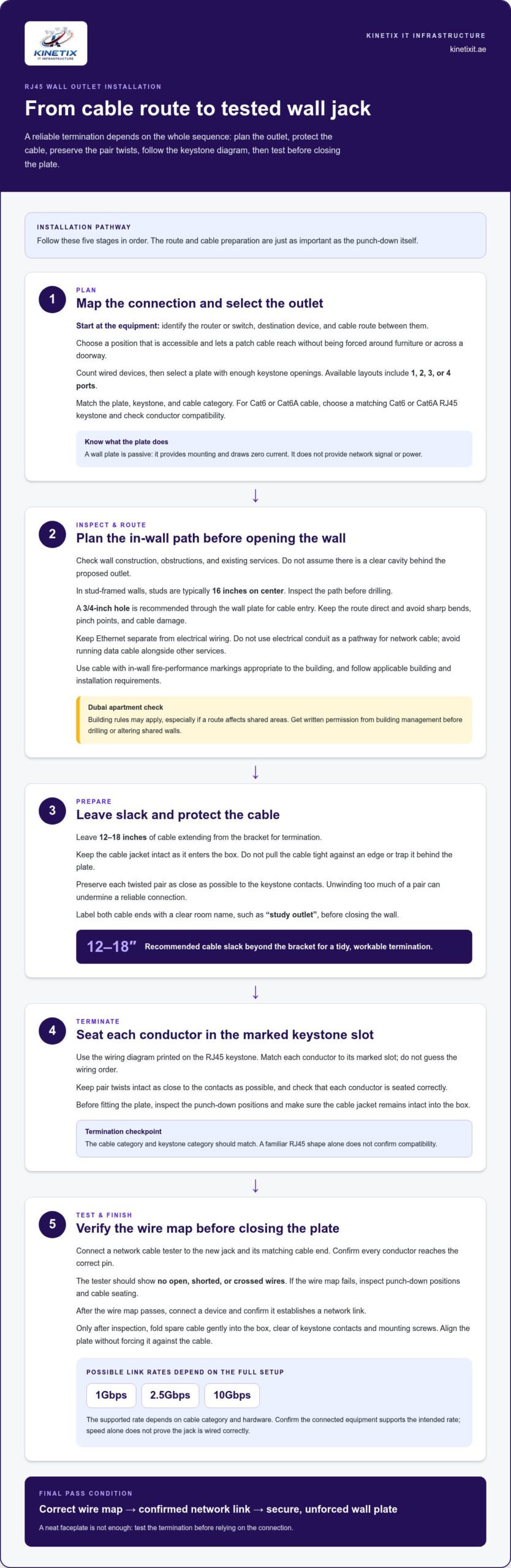
- Map the complete connection before choosing the faceplate. Identify the router or network switch, the destination device, and the cable route between them. For example, a wall jack behind a desk should be reachable without forcing the cable around furniture. Count the devices that need wired connections, then choose a plate with enough keystone openings. Layouts include one, two, three, and four ports.
- Match the wall plate, keystone, and cable before cutting or terminating anything. The plate accepts modular keystone jacks, so select a compatible RJ45 jack for the Ethernet cable category. A plate is passive and draws zero current; it provides mounting, not network signal or power. Check the electrical box fit and ensure the plate’s openings suit the modules you plan to install.
-
Arrange Professional Wall Outlet Installation
Mark the intended outlet position and inspect the route before making an opening. For a stud-framed wall, studs are typically spaced sixteen inches on center, which helps identify possible cable paths. A 3/4-inch hole is recommended through the wall plate for cable entry. Avoid sharp bends, pinch points, and routes that could expose cable to damage. Leave 12-18 inches extending from the bracket for termination.
Choose a plate that keeps the finished connection accessible and aligned. A three-port wall plate can support multiple Ethernet runs, while other configurations suit different device counts. Keep the cable jacket intact as it enters the box, and avoid leaving loose cable where the plate could compress it.
-
Test the Terminated RJ45 Wall Jack
Connect a network cable tester to the new jack and its matching cable end. Check that each conductor reaches the correct pin and that the tester shows no open, shorted, or crossed wires. If a link light or network connection fails, inspect the punch-down positions and cable seating before closing the plate. Testing can reveal wiring faults that a neat-looking faceplate conceals.
After the wire map passes, connect a device and confirm it establishes a network link. Correctly installed wall outlets may support 1Gbps, 2.5Gbps, or 10Gbps, depending on cable category and hardware. Don’t judge the jack by speed alone; confirm the connected equipment also supports the intended rate.
- Secure the finished assembly only after the cable and jack pass inspection. Fold spare cable gently into the box, keeping it clear of the keystone contacts and mounting screws. Align the wall plate without forcing it against the cable. A stable fit protects the termination and keeps the port easy to use for a router, computer, or other wired device.
Selecting outlet locations and routing in-wall cable
Choose the outlet position and cable route together, before opening a wall. For Cat6 or Cat6A, use cable marked for that category with a matching Cat6 or Cat6A RJ45 keystone; category markings should align across the cable, jack, and connected hardware. Ethernet is low-voltage, but that alone doesn’t establish permission to alter a wall or confirm fire suitability. Use cable with in-wall fire-performance markings appropriate to the building, and follow its management and applicable installation requirements.
- Start at the equipment and work toward the outlet. Mark where the router or switch sits, then locate the desk, television, access point, or other wired device. For example, position a desk jack so a patch cable can reach without crossing a doorway. Note furniture, existing sockets, and likely device changes before settling on the plate location.
- Inspect the wall construction before choosing a cable path. A Dubai apartment may have a different wall structure from a villa, so don’t assume there’s a clear cavity behind the proposed outlet. Check the route for obstructions and existing services, and avoid drilling until you understand what lies behind the surface. In stud walls, studs are typically positioned sixteen inches on center.
- Plan the entry point and cable opening around the wall plate. A 3/4-inch hole is recommended through the wall plate for the cable to reach inside the wall. Keep the route direct, avoid sharp turns, and leave enough cable at the outlet for termination and future handling. Don’t pull the cable tight against an edge or trap it behind the plate.
- Separate Ethernet from electrical wiring when planning the route. Don’t use an electrical conduit as a pathway for network cable, and avoid placing data cable where it could be crushed or damaged during wall finishing. If the route must cross another service, plan a clean crossing rather than running alongside it. In an apartment, include the building-approved route in your plan.
- Match the cable construction to the keystone before installation. Cat6 or Cat6A cable needs a keystone labeled for the same category, with conductor type compatible with the jack’s termination method. Keep the cable jacket intact through the route, and don’t choose a jack based only on its RJ45 appearance. Category and compatibility markings matter for the complete link.
- Record the route and label both cable ends before closing the wall. A simple room name, such as “study outlet,” helps identify the far end at the router or switch. For a carefully planned in-wall cable route, consider how the finished outlet will connect to the wider home network.
Preserving wire twists during keystone termination
Common mistakes include untwisting too much cable, mixing the color sequence, and leaving conductors partly seated. Compare each wire with the keystone’s T568A or T568B diagram, correct the pair placement, and reseat any conductor that sits above its contact.
- Prepare the cable without disturbing the pairs. Remove only enough outer jacket to expose the conductors needed for the keystone terminals. Use a cable stripper carefully so its blade doesn’t nick the insulation. A cut or scrape can weaken a conductor and cause an intermittent connection, even if the wire still appears intact.
- Keep each color-coded pair twisted as close to its contact as the keystone layout allows. The blue, orange, green, and brown pairs must stay together; don’t straighten long sections just to make the conductors easier to arrange. Untwisting changes the cable’s pair geometry and can increase interference, particularly when pairs are separated across the termination area.
- Read the wiring legend printed on the jack before placing conductors. RJ45 keystones commonly show T568A and T568B color paths, so choose the diagram used for the rest of that Ethernet run. Follow one scheme consistently at both ends. Don’t blend the A and B color positions on a single cable, even if each individual wire appears firmly seated.
- Arrange the conductors along the marked channels without pulling them taut. Guide each wire into its labeled slot, keep its partner beside it, and preserve the pair’s twist up to the contact area. If conductors cross or the order becomes unclear, lift and reposition them carefully before punching down. Forcing a crossed wire into a slot can hide the error under the jack cover.
- Use the termination tool specified for the keystone, or follow the jack’s tool-free instructions. With a punch-down jack, align the tool with the contact and seat each conductor fully. Where the jack design indicates, face the cutting edge toward the waste end. A conductor left above its contact may fail testing or shift when you fit the wall plate.
- Inspect the finished termination under good light before closing the plate. Confirm that every color occupies its labeled channel, the pairs remain together, and no insulation is cut back beyond the contact area. Check for loose copper strands, damaged jackets, or wires displaced during handling. Correct any misaligned conductor before connecting network equipment.
- Keep the cable stable while securing the keystone in its wall plate. Avoid twisting the jack against the cable or forcing the assembly into the box. These movements can loosen a seated conductor or disturb the pair placement. A final visual check after mounting helps catch wires shifted by the plate or screws.
Punching down conductors into an RJ45 keystone
- Match the keystone to the cable before arranging any conductors. Check the category marking on both parts, such as Cat6 cable with a Cat6 jack. An RJ45 8P8C keystone has eight contact positions. Confirm the jack accepts the cable’s conductor type and termination method before beginning.
- Read the color legend printed on the keystone body. Most jacks show two wiring patterns, so choose one complete pattern and follow it throughout the connection. Don’t combine colors from different patterns. If the cable’s other end uses one pattern, use the same pattern at this wall jack.
- Strip the outer jacket carefully, exposing only enough length to reach the keystone terminals. Use a suitable cable stripper and avoid nicking the insulated conductors. A small cut can weaken a wire or cause an unreliable contact. Keep the jacket near the jack’s cable support where the design allows.
- Separate the four color-coded pairs and match each conductor to the printed channels. Untwist only enough wire to reach its assigned contact. Keep each pair together as close to the termination point as the jack permits. Long untwisted sections make correct routing harder and disturb the cable’s pair arrangement.
- Lay each conductor in its matching channel without crossing adjacent wires. Follow the color labels from the cable side toward the contact slots. Keep each insulated wire straight and seated in its groove. If a conductor slips out or crosses another, reposition it before using the punch-down tool.
- Use a punch-down tool designed for the keystone contacts. Align the tool with the slot, then press firmly until the conductor is seated. Where the jack design calls for trimming, place the tool’s cutting side toward the excess wire. Avoid striking the contact at an angle, which can leave the wire only partly engaged.
- Inspect every termination under clear light before fitting the jack into the wall plate. Check that each wire reaches its contact, follows the color legend, and has no damaged insulation near the slot. Remove trimmed wire fragments from the jack. If a conductor sits high, reseat it rather than relying on the cover to press it down.
- Secure the keystone in the wall plate without twisting the cable behind it. Keep the cable jacket supported and avoid sharply folding conductors inside the box. For example, guide spare cable into a broad loop rather than forcing it against the jack. Check that the jack sits flat and its wires remain seated.
How to test an RJ45 wall jack after termination
- Inspect the mounted jack before connecting test equipment. Confirm the keystone sits securely in the plate and no wires have shifted at the contacts. Check that the cable jacket remains supported and the outlet opening doesn’t pinch the cable. A quick visual inspection can reveal a loose conductor before testing.
- Connect a network cable tester to the wall jack and the matching cable end. For a basic wire-map test, the remote unit must connect to the far end of the same run. Labelled cable ends make it easier to match connections, especially when several wall outlets terminate near one router or switch.
- Read the tester’s sequence for all eight positions in the RJ45 8P8C connection. The tester should show each conductor reaching its corresponding position at the far end. Look for open circuits, shorts, crossed wires, or a split pair. A failed position points to a termination or cable fault, not a speed limitation.
- If the wire map fails, disconnect the tester and inspect both terminations. Compare the color order with the keystone’s printed wiring diagram, then look for a conductor that missed its contact. Reseat the affected wire and test again. If the same position still fails, inspect the cable for a cut, crushed section, or damaged connector.
- After the wire map passes, connect the jack to a router or network switch with a known-working patch cable. Connect a laptop or other wired device at the wall outlet. Check that the device reports an active Ethernet link and can reach the local network. If the link stays down, try another patch cable before reopening the wall plate.
- Assess speed only after confirming the link and device connection. A correctly installed outlet may support 1Gbps, 2.5Gbps, or 10Gbps, depending on cable category and hardware. The connected network equipment and test device must also support the speed being checked. A lower result can reflect equipment limits, not only the wall termination.
- Record the outlet label, wire-map result, and equipment used for the final check. For example, note that the study jack passed its wire map and linked to the switch. This gives you a clear baseline if a later device loses connection. If the jack will serve a wireless access point, explore Wi-Fi Access Point Installation for help integrating it into the home network.
KINETIX IT Infrastructure: Wi-Fi Installation & Setup
KINETIX IT Infrastructure can help connect a tested wall jack to a dependable home Wi-Fi setup in Dubai. If the outlet works but wireless coverage remains weak in another room, Wi-Fi Dead Zone Fixing or Wi-Fi Optimization may address the wider network issue. Wi-Fi Troubleshooting & Repair can help diagnose unstable connections, while Wi-Fi Installation & Setup supports a new or updated home network. The right next step depends on whether the problem is at the wall jack, router, or wireless coverage layer. Contact KINETIX IT Infrastructure to discuss your home network needs.
Build the Next Layer of a Connected Home
A wall connection is most valuable when it supports how you use your home, from a home office to everyday streaming. As you plan to terminate RJ45 keystones in a wall plate in Dubai, consider how the wired connection will work alongside your wireless network. A well-planned setup can make it easier to place devices where they serve you best and identify whether a later connectivity issue comes from the outlet or Wi-Fi coverage.
For the wireless side of your setup in Dubai, KINETIX IT Infrastructure offers Wi-Fi Installation & Setup, Wi-Fi Troubleshooting & Repair, and Wi-Fi Dead Zone Fixing. These services can help when a tested wall jack is in place but wireless performance still needs attention. Match network support to how you use each room, without adding unnecessary complexity.
Contact KINETIX IT Infrastructure to discuss your home connectivity needs and take the next step with confidence.
Frequently Asked Questions
How Do You Install a Keystone Jack Into a Wall?
Fit the terminated keystone into its wall plate, then secure the plate to the wall box or mounting bracket. Confirm that the jack’s retaining clips engage and the cable sits behind it without pressure. On a modular plate, each jack is a separate insert, so an unused opening can take a blank insert if the plate design allows. Finish by checking that the plate sits level and a patch cable inserts and releases smoothly.