
A high ping reading doesn’t automatically rule out competitive play. Dubai CS2 players have reported rerouted latency of 75-110 ms, and a stable 80 ms connection can feel better than one fluctuating around 100 ms. To reduce high ping for competitive gaming in Dubai, first identify whether the delay comes from your home network or the route to the game server.
It’s frustrating when a match suddenly feels less responsive, especially if your connection used to perform well. But changing Wi-Fi settings won’t fix every cause: congestion or a problem along the route between your ISP and the game server may be beyond your home network.
This guide explains why CS2 latency can rise in the UAE, what you can test at home, and how to judge whether your connection is consistent enough for competitive play. You’ll also see what common fixes can improve, and what they can’t change when the issue lies outside your network.
Key Takeaways
- Separate home-network problems from congestion or routing issues beyond your home before changing settings.
- Compare ping stability, jitter, and packet loss to understand how your connection behaves during play.
- Use a wired connection and review router traffic settings to reduce delays caused by local Wi-Fi conditions or competing activity.
- Choose a game server based on the route from Dubai, not location alone; the geographically closest option may not deliver the smoothest connection.
- Recognize when Wi-Fi troubleshooting or optimization can help, and when the cause is outside your home network.
Causes of sudden CS2 latency increases in the UAE
A CS2 player in Dubai reported ping above 100 ms on March 28, 2025. Sudden increases can come from home Wi-Fi, ISP congestion, or a longer route to the server.
Sudden Latency Triggers
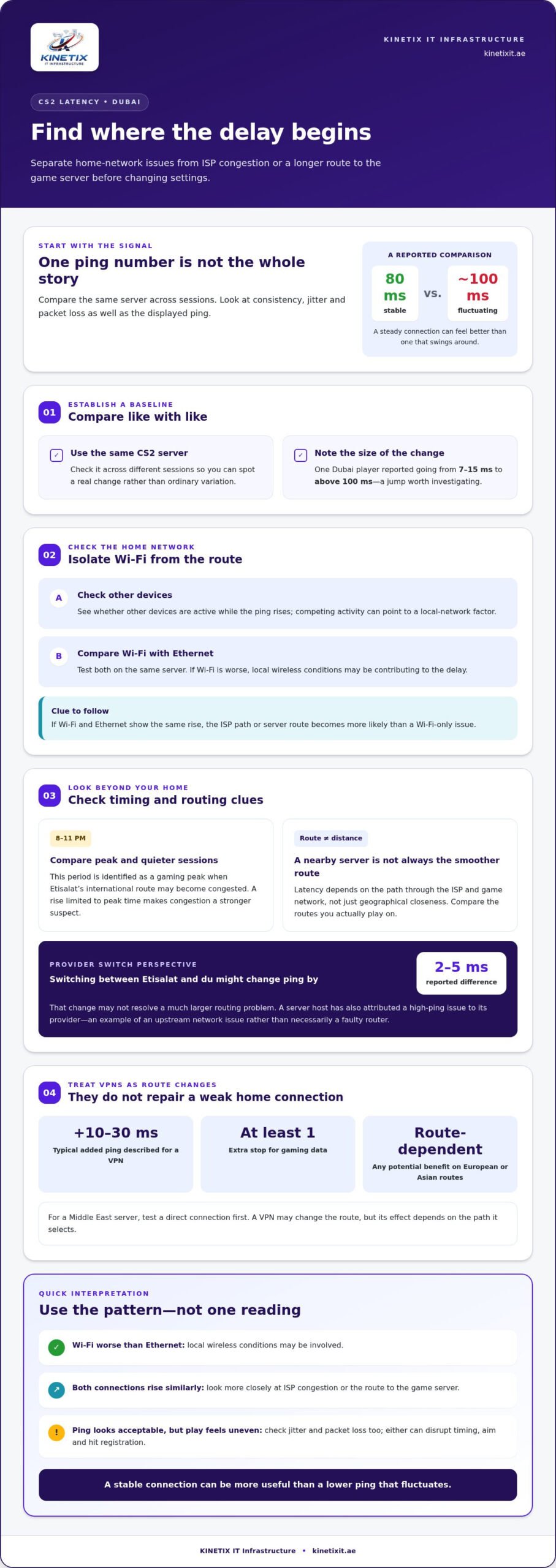
Start by comparing the same CS2 server across different sessions. One Dubai player previously recorded 7-15 ms, then experienced a reading above 100 ms. A jump like this points beyond ordinary match variation. Check whether other devices are active, then compare Wi-Fi with Ethernet. If both show the same rise, the server route or ISP path becomes more likely.
Routing can matter more than the distance between your home and the server. A Dubai server owner said their hosting provider attributed the high-ping problem to its provider. That points to an upstream network issue, not necessarily a faulty router. Switching between Etisalat and du might change ping by 2-5 ms, but that difference may not resolve a much larger routing problem.
Timing offers another useful clue. The period from 8-11 PM is identified as a gaming peak when Etisalat’s international route may become congested. Compare a match during that window with a quieter session. If latency rises only at peak time, congestion is a stronger suspect than a permanent Wi-Fi fault. Middle Eastern internet backbone disruptions were also reported in March 2026.
A VPN changes the route rather than repairing a weak home connection. It adds at least one stop for gaming data and typically adds 10-30 ms of ping. For a Middle East server, test a direct connection first. A VPN may help with a European or Asian route, but its effect depends on the path it selects.
UAE internet plans or regulations shouldn’t be treated as the default cause of high CS2 ping. Router permissions can affect port forwarding, while VPN routing can add delay; neither setting repairs congestion between an ISP and a game server.
Ping and Competitive Performance
Competitive play depends on responsiveness and consistency, not ping alone. A stable 80 ms connection can feel better than one fluctuating around 100 ms. Watch for jitter, where latency swings between readings, and packet loss, where data fails to arrive. These symptoms can disrupt aim, movement, and hit registration even when the displayed ping looks acceptable.
For perspective, UAE players previously had 5-15 ms ping when MENA servers were available. A sudden increase from that range can feel severe, but it doesn’t prove your local network is the cause. Compare readings across servers and sessions. If latency remains high on one route while other connections stay steady, the game-server path deserves closer attention.
What is a good ping for competitive gaming, and how much does ping affect performance?
There isn’t one ping value that guarantees a competitive advantage in every game. The useful target depends on the server route, connection stability, and how quickly each game registers actions. For CS2, compare your readings on the same server over several sessions. A low reading that stays consistent is more useful than a single unusually low result.
A reported Dubai example shows why distance alone doesn’t predict latency: a player’s friend lived less than 1 kilometre away and received 7-15 milliseconds of ping. The route through the ISP and game network still matters. Compare your own connection with the server you actually play on, rather than assuming a nearby home or server guarantees the same result.
Ping measures the round trip between your device and the game server. Higher latency means your input takes longer to reach the server and for its response to return. In a fast CS2 duel, that can make a peek, shot, or movement feel delayed. It doesn’t automatically make competitive play impossible, but timing becomes harder when delay is high or inconsistent.
Consistency matters alongside the number
Jitter describes changes in latency between moments. A League of Legends example of ping bouncing between 50 ms and 120 ms shows how one connection can feel uneven during play. The changing delay makes timing less predictable than a steady reading. When comparing matches, note both the usual ping and the size of its swings.
Packet loss can also affect gameplay, even when the displayed ping looks reasonable. Lost game data may cause delayed updates or movement that appears to jump. In a competitive match, this can disrupt aim corrections and timing. Treat ping, jitter, and packet loss as separate signals rather than judging the connection by one number.
How delay changes in-game decisions
Latency affects games differently. In League of Legends, an estimate says players at 80 ms may miss 20-30 minions per game because of timing errors. At an average of 30 gold each, that represents a 600-900 gold deficit. It’s a game-specific example, not a direct prediction for CS2, but it illustrates how delayed feedback can affect repeated decisions.
Use a simple comparison before changing your setup: play the same game mode, on the same server, and record latency alongside any visible stutter or missed inputs. Repeat the test at another time. If your ping stays similar but performance varies, inspect jitter and packet loss. If local Wi-Fi coverage seems uneven, whole-home Wi-Fi can address that home-network factor, not a distant server route.
How can I test ping, jitter, and packet loss to game servers from Dubai?
Test the route you actually use for CS2, not just a general speed-test server. A speed test can show internet performance while missing a delay between your ISP and the game server. Compare the game’s own latency display with direct network tests, then note whether results change across Wi-Fi, Ethernet, and playing times.
Run a repeatable connection check
First, connect your PC to the router with Ethernet if possible. This gives you a useful comparison with Wi-Fi and helps isolate wireless interference. Close downloads and streams, then launch CS2 and record the server region, displayed ping, and any packet-loss indicator. Keep the same setup for later tests so differences are meaningful.
Next, find the game server’s destination address from the connection details available to your system. In Windows Command Prompt, run ping <server address> to view response times and timeouts. A player’s traceroute showed 185.25.183.179, but use that only if it matches your current CS2 destination. A different server needs its own address.
To inspect the route, run tracert <server address> on Windows. Each listed hop represents a network stop along the path. Look for where delays begin and whether they continue at later hops. One slow or unanswered hop doesn’t prove there’s a fault, as some routers limit diagnostic replies. Compare the route with the game’s own ping instead of treating one line as conclusive.
Read jitter and packet loss separately
Ping results that rise and fall between repeated checks suggest unstable latency. That variation is jitter. For example, a connection jumping between 50 ms and 120 ms would feel less predictable than a steady reading. Run the same test during play and outside a match, then compare the pattern rather than focusing on one response.
Packet loss appears when sent data receives no reply. Command Prompt may show timeouts, while CS2 may expose a loss indicator in its network display. Loss during a match can point to Wi-Fi interference, local congestion, or a problem farther along the route. A clean speed-test result doesn’t rule out loss on the path to a specific server.
Record the time, connection type, CS2 server, ping range, jitter pattern, and loss readings in one simple log. Compare sessions during the 8-11 PM gaming peak with quieter periods. If Ethernet is steady but Wi-Fi tests vary, focus on the home wireless link. If both show similar issues, the comparison helps distinguish local conditions from a wider route problem.
Which router settings can reduce ping and bufferbloat for competitive gaming?
Router settings can help when delay builds inside your home network. Bufferbloat occurs when heavy uploads or downloads create queues that delay game traffic. A CS2 match may feel less responsive while another device streams or uploads files. Start by testing your connection during normal household use, then adjust one setting at a time.
Prioritise game traffic without overloading settings
Open your router’s Quality of Service settings, often labelled QoS, and prioritise the gaming device or its traffic. Some routers offer Smart Queue Management, or SQM, which controls queues during busy transfers. Select the option that matches your router’s interface, then test CS2 while another device uploads. Compare the in-game latency and responsiveness before and after.
QoS cannot shorten a congested route between your ISP and a game server. It can help manage competition between devices on your own connection. Avoid assigning every device high priority. If a television, cloud backup, or large download takes precedence, the game may still compete for available capacity.
Improve the gaming device’s connection
For a desktop or console near the router, use Ethernet rather than Wi-Fi. A wired connection removes wireless interference as a factor. If cabling isn’t practical, connect to the router’s less congested Wi-Fi band, when available, and place the device where the signal is strong. Thick walls and enclosed cabinets can weaken coverage between the router and the room.
Check the router’s wireless channel and channel-width settings. Nearby networks can compete on the same channel, especially in apartments with many visible Wi-Fi networks. Try the router’s automatic channel selection first, then compare game performance after it selects a channel. Changing channel width may help in a crowded environment, but wider settings can also encounter more interference.
Make controlled changes and retest
Before changing the configuration, note the existing settings or save a router backup. Update the firmware through the router’s administration interface, then restart the router if required. Avoid changing port forwarding, firewall, or security settings without a specific reason. These options don’t resolve bufferbloat, and incorrect changes can disrupt other devices.
Test each adjustment under the same conditions: use the same CS2 server, connection type, and household activity. Compare idle play with a session where a device uploads or downloads. If ping rises only during heavy transfers, QoS or SQM may address local queueing. If latency stays high even with Ethernet and little household traffic, router settings are unlikely to fix an external route problem.
If wireless coverage is weak at home, a properly placed access point can improve the connection between the gaming room and the router. It won’t resolve ISP congestion, but it can rule out a weak local signal as the cause.
How can I choose the closest game server region when playing from Dubai
Choose a CS2 region by comparing the route’s measured performance, not by map distance alone. Dubai is roughly 600 kilometers from the Bahrain data center, while European League of Legends infrastructure in Frankfurt or Amsterdam is roughly 4,000 to 5,000 kilometers away. Those distances help frame the choice, but your ISP’s route and the game’s server location still determine actual latency.
Start with the server options shown in the game. Select a region, join a suitable match or test session, and note the displayed ping, connection stability, and any packet loss. Repeat the comparison on the same device and network connection. A region with a lower, steadier reading is generally a better practical choice than one that is closer geographically but performs inconsistently.
For each available region, compare these signals:
- Ping: Record the in-game reading for the selected server.
- Consistency: Notice whether latency stays steady or swings during play.
- Packet loss: Look for lost-data indicators or interrupted movement.
- Match quality: Observe whether shots and movement feel responsive in actual play.
Dubai’s route to Bahrain may be shorter than its route to Frankfurt or Amsterdam, but that alone doesn’t settle the decision. A game’s server region, hosting network, and ISP path can send traffic through different infrastructure. Compare what CS2 reports for each playable region instead of assuming the closest city will produce the lowest ping.
For European or Asian game servers, a VPN may find a more efficient route than your ISP. Test the VPN route against a direct connection using the same game region and connection type. VPN traffic adds at least one stop, and a VPN typically adds 10-30 ms of ping. Keep it off for Middle East servers when a direct connection gives lower latency. If testing VPN servers, aim for zero packet loss.
Make the choice based on repeatable match results, not a single lobby reading. If every region performs poorly on both Ethernet and Wi-Fi, changing the selected region may not solve the underlying route issue. If only Wi-Fi tests are unstable, address the home connection first. Improve home Wi-Fi coverage when weak wireless signal is affecting your gaming connection.
Reports vary: an Indian player reported ping of 40-60 on another Dubai server but ping of 200 on the poster’s Dubai server; the Dubai owner said two servers had almost the same network.
KINETIX IT Infrastructure: Wi-Fi Installation & Setup
KINETIX IT Infrastructure provides Wi-Fi Installation & Setup, troubleshooting, dead zone fixing, and Wi-Fi optimization for home network issues affecting gaming. If CS2 latency changes between rooms, Wi-Fi drops, or the gaming device struggles to maintain a steady connection, these services can help address the local network conditions.
Network setup and optimization can improve how devices connect throughout your home, while troubleshooting can help identify wireless problems. These fixes cannot change congestion or routing delays beyond your home network. Use ping and packet-loss tests to distinguish local symptoms from external issues.
If your gaming connection points to a home Wi-Fi problem, contact KINETIX IT Infrastructure to discuss Wi-Fi support for your setup.
Make your next connection check count
Your next step is to turn match observations into a clear diagnosis of your home network. Keep a short record of where you play, whether you use Wi-Fi or Ethernet, and how performance changes when other devices go online. This gives you a practical basis for deciding what to adjust, instead of changing several settings at once.
To reduce high ping for competitive gaming in Dubai, start with the issues you can influence at home. If performance changes with room location or wireless signal, KINETIX IT Infrastructure provides WiFi & Internet Support, including Wi-Fi installation, troubleshooting, and coverage improvement for homes. These services address home Wi-Fi conditions, not delays caused by an external route to the game server.
For support with a home connection that’s affecting your gaming setup, contact KINETIX IT Infrastructure. A clearer diagnosis can help you choose a sensible next step and get back to your matches with more confidence.
Frequently Asked Questions
Can I still play competitively?
Yes, you can still compete, but your role and play style may need to account for delayed input. In CS2, holding a position and pre-aiming can be more manageable than relying on last-second reactions. To reduce high ping for competitive gaming in Dubai, first identify whether the issue follows your home connection or a particular game route. Use a practice match to assess timing before entering ranked play.
Why am I getting a constant 153 ping?
A constant 153 ms reading can point to a persistently long or inefficient route to that particular CS2 server. A reported case described ping reaching a constant 153 ms, but the number alone doesn’t identify the cause. Note the selected server and compare it with another available region. If only one server produces that reading, the route to that server is a useful place to focus.
Why is my ping fine in other games?
Each game can connect you to different server locations and network routes, so good latency in one title doesn’t establish the route quality for CS2. Games may also display connection data differently. Compare the server region shown in each game, then check CS2’s own latency display during an online match. A console or PC can perform well overall while one game’s server path remains slow.
How do Ethernet, Wi-Fi 6, and router placement affect gaming latency?
Ethernet removes the wireless link between your gaming device and router, making it a useful test for local Wi-Fi issues. Wi-Fi 6 can support newer compatible devices, but it cannot shorten an external route to a game server. Place the router in an open, central position rather than behind a television or inside a cabinet. A weak signal across a Dubai apartment can make wireless play less consistent.