
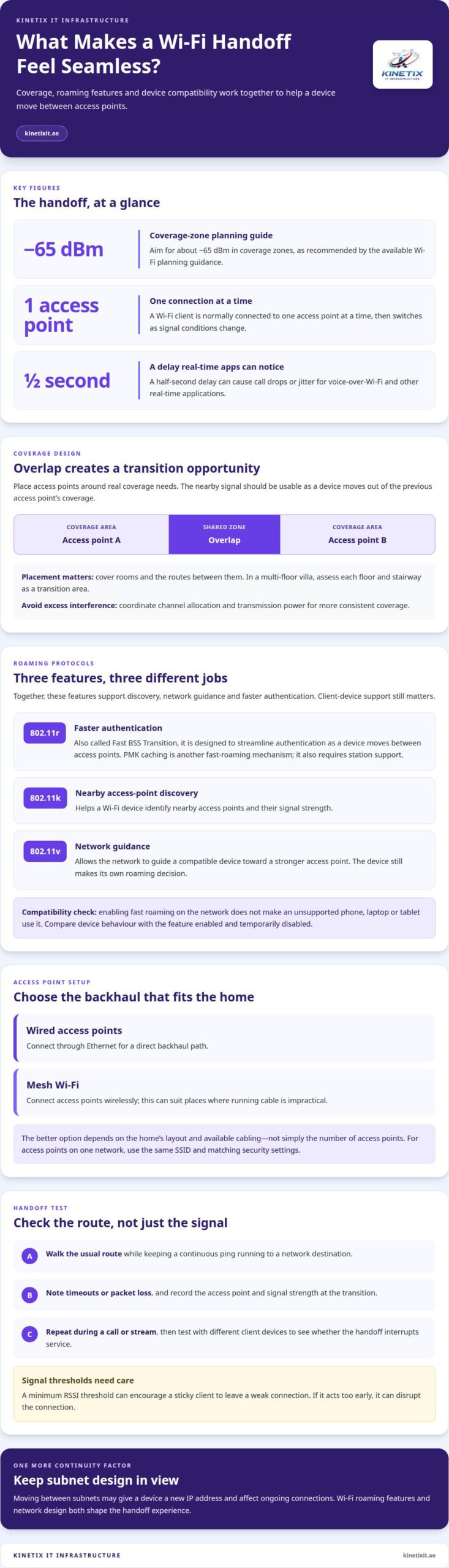
The strongest access point isn’t always the whole answer. Wi-Fi roaming is when a device hands off from one access point to another; a Wi-Fi client is normally connected to one access point at a time. A seamless roaming WiFi setup without disconnects depends on network design and whether the device supports the roaming features in use.
It’s understandable to expect a device to move smoothly between access points as you walk through a home or villa. In practice, signal coverage, handoff settings, and device compatibility all shape that experience. The network layout matters too: moving between subnets may give a device a new IP address and affect ongoing connections.
This guide explains how access point placement and overlapping coverage, roaming protocols, signal thresholds, and channel planning work together. It also covers how device compatibility and subnet design can make the difference between a smooth transition and a dropped connection, helping you understand what a well-planned Wi-Fi handoff involves.
Key Takeaways
- Plan access point positions around real coverage needs, with enough overlap to support transitions without creating unnecessary interference.
- Understand how 802.11r, 802.11k, and 802.11v support faster authentication, access point discovery, and network guidance, while device support still matters.
- Use signal thresholds thoughtfully: settings that encourage a sticky device to roam too soon can disrupt its connection.
- Coordinate channel allocation and transmission power to limit interference and create more consistent coverage throughout the home.
- Consider subnet design as well as Wi-Fi features, since a change of IP address during roaming can affect ongoing connections.
Access point placement and coverage overlap
Reliable roaming depends on overlapping access point coverage, compatible device behaviour, and a layout suited to the home. A client device usually connects to one access point at a time, then switches as signal conditions change.
How Roaming Maintains Service
Wi-Fi roaming is the transition from one access point to another while a device stays on the same network. The handoff matters during a voice call, video stream, or video meeting, when a weak signal can interrupt the activity. A successful design gives the device a usable connection nearby as it moves out of the previous access point’s coverage.
Devices usually make the roaming decision themselves, weighing the current signal against other available access points. That means two phones can behave differently in the same hallway. In a villa, a device might cling to a distant access point after moving upstairs; overlapping coverage and suitable signal thresholds help create a better opportunity to switch.
Mesh and Wired Access Point Setups
Mesh Wi-Fi connects access points wirelessly, while wired access points connect to the network through Ethernet. Wired access points provide a direct backhaul path; mesh can suit places where running cable is impractical. The better option depends on the home’s layout and available cabling, not simply the number of access points.
For access points on one network, use the same SSID and matching security settings so devices can move between them without joining a differently named network. Seamless roaming doesn’t always require a controller: coordinated or managed access points can centralize settings, while ETSI describes FTTR coordination where an MFU controller manages an SFU in real time.
Testing Handoff Interruption
Roaming tests show whether a device changes access points smoothly along its usual route. Keep a continuous ping running to a network destination as you walk from one coverage zone to another, then note timeouts or packet loss. Repeat the route during a voice call or stream, since a brief interruption can be more noticeable during real-time use.
Record the access point and signal strength at the transition, then repeat with different client devices. Aim for about -65 dBm in coverage zones, as recommended by the available Wi-Fi planning guidance. Signal readings help identify weak overlap, while the ping and call reveal whether the handoff itself interrupts service.
In a Dubai apartment, position access points to cover rooms and the routes between them, rather than concentrating coverage in one central room. In a multi-floor villa, assess each floor and stairway as a separate transition area. A floor plan and signal readings can show where coverage overlaps and where another placement may improve the handoff.
Fast roaming and the 802.11r, 802.11k, and 802.11v protocols
Fast roaming features support quicker transitions between access points, but each protocol handles a different task. A seamless roaming WiFi setup without disconnects depends on compatible devices, coordinated settings, and testing while moving through the space.
Fast Authentication with 802.11r
802.11r, also called Fast BSS Transition, is designed to streamline authentication as a device moves between access points. It matters for calls and other real-time activity, where extra authentication steps can extend an interruption.
With WPA or WPA2 and 802.1X authentication, a station needs key negotiation or authentication interaction each time it associates with an access point. 802.11r can reduce that work by preparing security information for the transition. PMK caching is another fast-roaming mechanism, but it also requires support from the Wi-Fi station.
Compatibility with Fast Roaming
Fast roaming compatibility means the client device and access point system can use a matching transition method. It matters because turning on 802.11r at the network level won’t make an unsupported phone, laptop, or tablet use it.
For example, a phone may disconnect after a fast-roaming setting is enabled, while a laptop on the same network continues normally. Compare device behaviour with the feature enabled and temporarily disabled. This can help distinguish a compatibility issue from a broader access point configuration problem.
The 802.11k and 802.11v Protocols
802.11k helps Wi-Fi devices identify nearby access points and their signal strength. 802.11v allows the network to guide a compatible device toward a stronger access point. These features matter because they provide useful information during a transition, without replacing the device’s own roaming decision.
In a home with access points on different floors, 802.11k can help a device identify nearby candidates, while 802.11v can recommend a more suitable connection. Together with 802.11r, they address discovery, network guidance, and faster authentication. A seamless roaming WiFi setup without disconnects uses these features only when the client device supports them.
A half-second delay can cause call drops or jitter for voice-over-Wi-Fi and other real-time applications. Testing a call while moving between access points can reveal whether fast roaming helps the devices that matter in your home. For tailored Wi-Fi access point installation, account for both protocol settings and client compatibility.
Minimum RSSI thresholds to encourage sticky clients to roam
RSSI, or received signal strength indicator, describes how strongly a device detects an access point. A minimum RSSI threshold can encourage a sticky client to leave a weak connection, but a setting that acts too early can interrupt service.
Minimum RSSI Thresholds
A minimum RSSI threshold is a signal-strength boundary that can prompt an access point to stop serving a client below that level. It matters because some phones and laptops remain attached to a distant access point even when another offers a stronger signal.
For example, checking whether Wi-Fi signal strength remains adequate while roaming can help identify coverage issues. Treat that as a reference point to investigate, not a universal setting: walls, access point placement, device antennas, and application needs all affect the usable signal in a particular home.
Thresholds that are too permissive can leave a device connected to a weak access point. A setting that is too aggressive can disconnect a device before the next access point provides a stable connection. In a villa corridor, the right balance depends on overlap between nearby access points and the client’s behaviour along that route.
802.11V Roaming Recommendations
802.11v lets a wireless network recommend that a compatible client move to a stronger access point. This matters because the recommendation can help a sticky device consider a better connection while leaving the final roaming decision to the client.
For example, as a phone moves away from a living-room access point, the network may suggest one covering the hallway. The phone can accept or ignore that suggestion, depending on its own roaming logic and current connection. So 802.11v supports smart roaming, but it doesn’t guarantee a handoff at a particular RSSI.
Client devices differ. One laptop may roam as soon as another access point becomes more attractive; a phone may hold its current connection longer. The same RSSI threshold can therefore produce different results across devices on the same wireless network.
A practical assessment compares signal readings with the device’s actual behaviour. Track the access point and RSSI as a client moves through a room, then note whether it switches, stays attached, or disconnects. Repeat the route with devices used for calls, streaming, or other sensitive activities.
Adjust thresholds in relation to coverage overlap, not as an isolated number. If the client disconnects before it can reach another access point, the threshold may be too strict or the coverage gap too wide. If it clings to a weak connection, review the threshold and 802.11v recommendations together. Monitor those changes across client devices to find a setting that encourages timely roaming without premature disconnection.
Channel planning and transmission power
Channel planning assigns radio channels across access points to reduce interference and support reliable roaming. A wireless network needs coordinated channel and power settings, not simply a strong signal from every access point.
Professional WLAN planning before deployment helps identify how access points should work together. In a Dubai home, nearby access points may cover a living room, hallway, and upper floor. If they compete for the same channel, congestion can affect performance even where the signal looks strong.
Wi-Fi analyzers help identify channel congestion in the areas where devices are actually used. A useful assessment checks each access point’s channel and nearby wireless activity, then allocates channels to minimize interference and maintain coverage. For example, if a hallway connection slows while neighbouring rooms perform well, an analyzer can help reveal whether channel congestion contributes to the problem.
Channel allocation is a coordinated decision. Changing one access point without considering the others can shift interference rather than resolve it. Configuration should account for access point locations, overlapping coverage, and other active wireless networks. This supports a more consistent transition as a device moves through the home.
Transmission power also shapes the effective coverage area. Raising power may make an access point’s signal reach farther, but it doesn’t automatically create a balanced connection. A client device may hear the access point while its own lower-power response struggles to reach back. That mismatch can leave a device connected at a distance with weak two-way communication.
Power settings should be considered alongside access point placement and channel allocation. If one access point broadcasts much more strongly than nearby units, devices may hold onto it instead of choosing a closer connection. A measured adjustment can balance coverage zones and reduce unwanted overlap while preserving a usable signal where people move.
A practical planning and tuning process considers:
- Channel congestion: Use Wi-Fi analyzer readings to identify interference and allocate channels across access points.
- Coverage boundaries: Compare signal readings in rooms, corridors, and transition areas.
- Transmission power: Balance access point reach with nearby units, rather than maximizing each radio independently.
- Real-world performance: Reassess the wireless network after configuration changes and adjust using performance readings and user feedback.
Channel and power choices depend on the building layout, access point positions, and observed wireless activity. Periodic monitoring can reveal changes in network performance, such as after equipment moves or a neighbouring network adds interference. Adjust the configuration based on those measurements, then assess whether coverage and roaming improve along the same routes. This measured approach supports a stable network without assuming one channel or power level suits every home.
Device compatibility and Layer 3 roaming challenges
A Wi-Fi handoff can succeed at the radio level yet still interrupt an application. The key distinction is whether a device moves between access points on the same local network or crosses into another subnet. That network-layer change can affect its IP address and ongoing connections, even when the wireless signal remains available.
Within the same local network or subnet, a device can keep its IP address as it changes access points. This is Layer 2 roaming when access points share the same VLAN pool. For example, a laptop moving from a ground-floor access point to an upstairs one can remain on the same subnet, so the handoff doesn’t require a new IP address.
Layer 3 roaming involves movement between different subnets. A device often receives a new IP address in that transition. A video call, remote session, or other active connection may then be affected, even if the laptop shows that it has reconnected to Wi-Fi. The visible signal bars alone don’t show whether the underlying network path changed.
Device compatibility adds another variable. Phones, laptops, and tablets can differ in how they support roaming features and respond to access point changes. For instance, two devices moving through the same villa may connect to the same access points but experience different interruptions. Their behaviour depends on client support as well as the network’s roaming configuration.
Assess both the wireless transition and the IP-level result. During a test, note which access point a connected device uses, whether its IP address changes, and what happens to an active application. Repeat the same route with a laptop and a phone. If the connection drops only when crossing a subnet boundary, investigate the network design; if only one device struggles, examine that client’s compatibility.
For continuous service across rooms, plan roaming areas with subnet boundaries in mind. Keeping access points within the same local network supports a consistent IP address during the switch. Separate subnets may still suit a network’s design, but their boundaries can introduce a different challenge from signal coverage. The practical takeaway is to diagnose the layer involved: radio handoff, client compatibility, or IP change.
If device behaviour or subnet transitions are disrupting home connectivity, get connected-device configuration support for a setup tailored to the network and devices in use.
KINETIX IT Infrastructure
KINETIX IT Infrastructure helps homeowners address roaming issues through Wi-Fi installation and setup, troubleshooting and repair, dead zone fixing, and Wi-Fi optimization. This is a practical next step when devices stay connected to a distant access point, handoffs interrupt calls, or coverage varies between rooms.
For a home or villa, the work can address access point placement, network configuration, and signal conditions affecting connected devices. Troubleshooting helps distinguish a coverage gap from a roaming or configuration issue, so improvements target the cause rather than only the symptom.
Contact KINETIX IT Infrastructure to discuss your Wi-Fi roaming and coverage needs.
Make Your Next Wi-Fi Move with Confidence
A seamless roaming WiFi setup without disconnects is best approached as an ongoing refinement, based on how people and devices actually move through the home. Keep the routes and devices that matter in mind when deciding what to address next. A call that falters in one area, for example, points to a different problem from a device that stays connected to a distant access point.
When you’re ready for help interpreting those symptoms, KINETIX IT Infrastructure offers Wi-Fi Installation & Setup, Wi-Fi Troubleshooting & Repair, and Wi-Fi Dead Zone Fixing. These services can address installation needs, connection problems, or areas where coverage needs attention.
Contact KINETIX IT Infrastructure to discuss your home’s Wi-Fi needs and take a considered next step.
Frequently Asked Questions
What Is Wi-Fi Roaming?
Wi-Fi roaming is a device’s transition between access points within a wireless network. For example, a phone can move from a lounge to a home office while staying connected to the same network name. The handoff happens in the background, so users don’t manually select another access point. Whether an active app continues smoothly also depends on authentication, signal conditions, and whether the network connection remains consistent.
Why Wi-Fi Roaming Is Important for Seamless Connectivity?
Roaming matters when you use a connected device while moving between rooms. A voice call from the kitchen or a video meeting while walking through a villa can be disrupted if the device holds a weak connection or pauses during a transition. Well-coordinated roaming helps mobile devices stay usable across covered areas. It’s less relevant for a stationary desktop or television that remains beside one access point.
How does seamless Wi-Fi roaming work between access points?
The device detects available access points, evaluates its connection, and associates with another one when its roaming logic decides to switch. The network can assist, but the client device remains central to the decision. Security authentication also matters: with WPA or WPA2 and 802.1X, association involves authentication or key negotiation. A fast transition can reduce this work when the access points and client support the same method.
How to configure 802.11k, 802.11v, and 802.11r for fast roaming?
Enable the roaming features in the wireless network’s access point or management settings, then align configuration across the access points. 802.11k helps clients find nearby access points, 802.11v can recommend a stronger one, and 802.11r supports faster authentication during transition. Test with the phones and laptops used at home. If one device disconnects, compare its behaviour with fast roaming enabled and temporarily disabled.
How to prevent Wi-Fi drops when moving between mesh nodes or access points?
Start by identifying where the drop occurs, such as between floors or near a mesh node. Confirm that the route has usable overlapping coverage and that access points share the intended network configuration. Then test a call or continuous connection while walking that route with the affected device. If only one device drops, investigate its roaming compatibility; if several do, review wireless configuration and coverage together.
What RSSI threshold and roaming settings are recommended for seamless Wi-Fi?
There isn’t one RSSI threshold that suits every home and device. A threshold should reflect coverage overlap and client behaviour, since a phone and laptop can roam differently in the same location. Adjust the setting conservatively, then observe whether a device switches before its connection becomes unusable. If it disconnects before reaching another access point, reassess both the threshold and the available coverage.
Which devices and routers support fast roaming, and what compatibility issues can occur?
Fast roaming works when the access point system and client device support compatible roaming features. Support can differ between a phone, laptop, and router, so a setting enabled across the network may not benefit every device. A separate issue arises if a handoff crosses into another subnet: the device may receive a new IP address, affecting an active connection even when Wi-Fi reconnects successfully.
How to set up Wi-Fi access points with the same SSID and security settings?
Configure each access point with the same SSID and matching security settings, and coordinate their network settings. This lets devices move between access points without joining a differently named network.