
What if your router isn’t the real source of the problem? Slow speeds, dropouts, or a weak signal in one room can come from the internet connection, a device, Wi-Fi coverage, or network settings. Wi-Fi Troubleshooting & Repair starts by locating the fault, not by repeatedly restarting equipment or changing settings and hoping for a lasting fix.
If unreliable Wi-Fi is interrupting work, streaming, or connected devices, you may be wondering whether you can solve it yourself or need a technician. In Dubai, nearby wireless networks in apartment buildings and thick villa walls can also affect coverage, so the same symptom may have different causes in different homes.
This guide will help you narrow down the likely source, try safe first checks, and recognize when professional support may be useful. You’ll also learn what a thorough assessment should consider, from router configuration and Wi-Fi coverage to network cabling. KINETIX IT Infrastructure provides Wi-Fi troubleshooting and repair for homes and villas in Dubai when basic checks haven’t resolved the issue.
Key Takeaways
- Use the pattern of the problem to narrow down whether it may involve one device, Wi-Fi coverage, the router, or the internet connection.
- Follow safe first checks to compare connectivity across devices before changing advanced network settings.
- Wi-Fi Troubleshooting & Repair should begin by locating the fault, so the next step addresses the cause rather than just the symptom.
- Note when and where the issue occurs to give a technician useful details about recurring problems.
- A professional diagnosis can identify whether router configuration, coverage, access points, or cabling needs attention.
Wi-Fi Troubleshooting & Repair: What Do Your Symptoms Tell You?
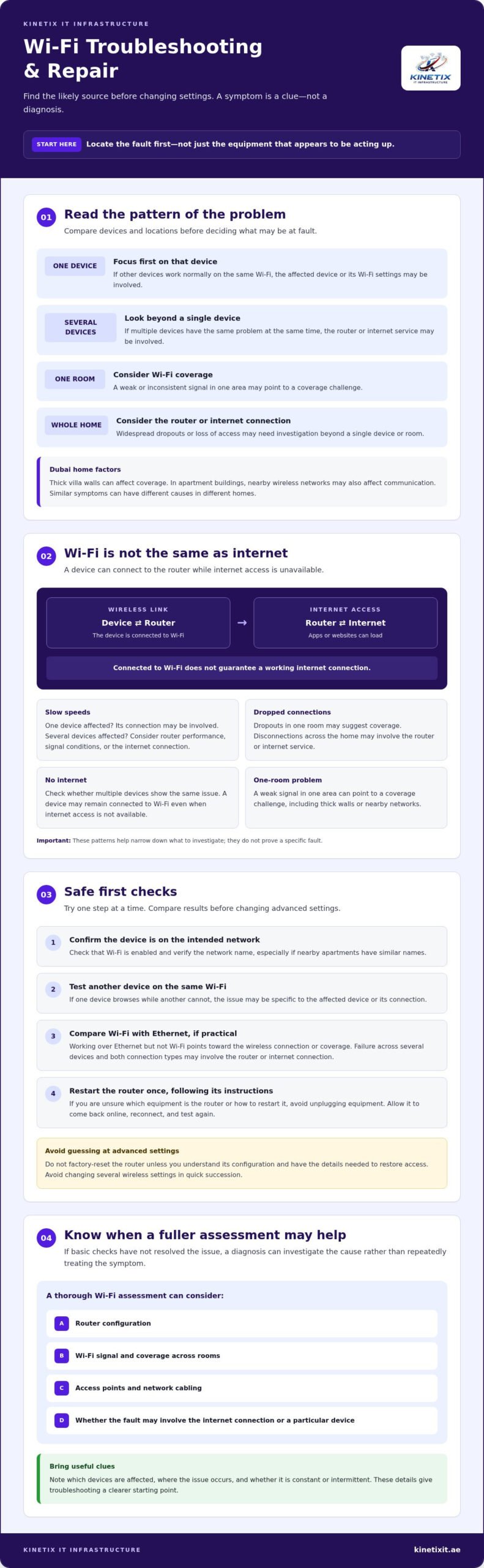
One device failing to connect doesn’t automatically mean the whole home network is broken. Before changing router settings, test another phone, computer, or smart TV on the same network. If only one device struggles, the issue may be with that device or its Wi-Fi settings. If several devices have the same problem at the same time, look beyond a single device.
A Wi-Fi connection links your device to the router; it doesn’t guarantee that the router has a working connection to the internet. This explains why a device can show as connected while apps or websites won’t load. The wireless link may reach the router even if internet service is interrupted, or the problem may be limited to a particular app or device.
Is the problem affecting one device or the whole home?
Test another device in the same location, then compare results in a different room. If one device is affected while others work normally, focus first on that device rather than assuming the router has failed. If several devices lose access together, the router or internet service may be involved. These patterns are useful clues, not a certain diagnosis.
What do slow speeds, dropouts, and no internet suggest?
Symptoms can help narrow down what to investigate, but they don’t prove a specific fault:
- Slow speeds: If the slowdown affects one device, its connection may be involved. If it affects several devices, consider router performance, signal conditions, or the internet connection.
- Dropped connections: Dropouts in one room may suggest weak or inconsistent coverage. If devices disconnect throughout the home, the router or internet service may need attention.
- No internet: Check whether multiple devices show the same issue. A device can remain connected to Wi-Fi even when the internet connection itself isn’t available.
- One-room problems: A weak signal in a particular area can point to a coverage challenge. Thick walls in a Dubai villa or interference in a busy apartment building may affect the wireless signal.
In apartment buildings with nearby networks, wireless devices can also compete to communicate. One technical example is the hidden node problem, where devices that can’t detect one another may still interfere with communication through the same access point. It’s one possible explanation, not a conclusion to draw from symptoms alone.
Note which devices are affected, where the issue occurs, and whether it’s constant or intermittent. Those details give Wi-Fi Troubleshooting & Repair a useful starting point: identify the pattern first, then investigate the likely part of the connection.
How to Troubleshoot Wi-Fi Safely Before Requesting Repair
Start with checks that help separate a device issue from a home network or internet problem. Work through them one at a time and note what changes. This helps preserve your network configuration while giving you clearer clues about what may need attention.
Which Wi-Fi checks are safe to try at home?
First, confirm Wi-Fi is enabled on the affected device and that it has joined the intended home network. Check the network name, especially if nearby apartments have similarly named connections. Then test another device on the same Wi-Fi. If one device can browse while another cannot, the issue may be specific to the affected device or its connection.
If practical, compare Wi-Fi with a wired connection using an Ethernet cable. If a device works over Ethernet but struggles on Wi-Fi, that points toward the wireless connection or coverage, but doesn’t prove the internet service is down. If several devices fail on both connections, the router or internet connection may be involved. These results are clues, not a definitive diagnosis.
Next, restart the router once, following the manufacturer’s instructions. Avoid unplugging equipment if you’re unsure which device is the router or how it should be restarted. Allow the equipment to come back online, then reconnect a device to the intended Wi-Fi network and test again. For device-specific steps, consult Microsoft’s guide to troubleshoot Wi-Fi in Windows.
Which troubleshooting steps should you avoid guessing at?
Don’t factory-reset the router unless you understand how it’s configured and have the details needed to restore access. A reset can remove settings that your home network relies on. Avoid changing several wireless settings in quick succession, too.
Changing several settings at once makes diagnosis harder because you can’t tell which change affected the connection. If you adjust a setting, record its original value first and test the connection before making another change. Stop if you’re unsure what a setting controls.
For broader checks involving devices connected to your home network, see this connected device configuration checklist. If basic checks haven’t resolved the issue, professional Wi-Fi troubleshooting and repair can help identify whether the next step involves router configuration, coverage, or cabling.
Wi-Fi Fault or Internet Outage? Compare the Likely Causes
A device can remain connected to your router while websites and apps can’t reach the internet. Compare what happens across devices, rooms, and connection types to narrow down whether the issue may sit with one device, the Wi-Fi network, the router, or your internet provider. The pattern helps show where to investigate, but it can’t confirm the fault on its own.
| Symptom | Likely area to investigate | Useful next check |
|---|---|---|
| One device can’t connect, but others work | The affected device or its saved network connection | Reconnect to the intended Wi-Fi network and test another app or website. |
| Internet works near the router but not in one area | Wireless coverage or local signal conditions | Check whether the problem follows the room or location across devices. |
| Several devices lose Wi-Fi or internet access together | Router operation or configuration | Check the router’s status and whether the issue affects both Wi-Fi and a wired connection, if available. |
| Devices connect to Wi-Fi, but none can access the internet | The router’s connection to the internet or provider service | Check your provider’s service notices, then contact the ISP if the evidence points beyond the home Wi-Fi. |
How can you tell a Wi-Fi fault from an internet-provider issue?
Test more than one device on the same network. If several devices connect to Wi-Fi but can’t load online content, the wireless link may be working while internet access is unavailable. If a wired connection also has no internet, that further suggests the issue may be beyond Wi-Fi, though it doesn’t prove the provider is at fault. Check for service notices from your ISP or contact them to ask whether there’s a known interruption.
When might router, coverage, or cabling need attention?
Dropouts across devices that return after basic checks call for a broader look at the home network. An assessment may include router configuration, access points, coverage in affected areas, and Ethernet cabling where relevant. Room layout and building materials can be considered, but shouldn’t be assumed to be the cause without checking the signal and network setup.
Professional Wi-Fi Troubleshooting & Repair should begin with diagnosis, not automatic equipment replacement. Ask what the checks indicate and why a proposed change is needed before replacing a router or other hardware. For a stable connection that supports video calls and everyday work, see the home office network setup guide.
When Should You Call a Wi-Fi Troubleshooting Technician in Dubai?
An occasional glitch on one device may clear after reconnecting, and it doesn’t automatically call for professional help. Consider a diagnosis when the same problem returns, affects several devices, or continues after basic checks. Repeated restarts without a lasting change are a sign that it may be time to stop experimenting and look for the underlying fault.
Which recurring Wi-Fi problems justify professional diagnosis?
Persistent dropouts across devices, unexplained slowdowns in more than one area, or repeated loss of connectivity deserve a closer look, especially if they disrupt work or essential connected devices. By contrast, a one-off problem affecting a single phone or laptop may be isolated to that device. The key distinction is whether the issue is repeatable across devices or locations, not simply whether it happened once.
You don’t need to call for every brief interruption. But if the fault keeps returning after basic checks, further setting changes may make it harder to understand what’s happening. Wi-Fi Troubleshooting & Repair can help determine whether the issue points to router configuration, coverage, access points, or cabling, rather than assuming equipment needs replacing.
What should you prepare before a Dubai home Wi-Fi visit?
A concise record makes it easier to explain the pattern and gives a technician a useful starting point. Before arranging a visit, note:
- Where it happens: List affected rooms and where the router and any other network equipment are located.
- What is affected: Name the devices that lose connection and whether they fail together or separately.
- When it occurs: Record approximate times, how often the issue returns, and whether it lasts briefly or continues.
- What you’ve checked: Note the basic checks already completed and what changed, if anything.
- Network context: Identify your internet service provider, connected devices, and any recent changes to equipment or network settings.
These details help distinguish a recurring network fault from a temporary device issue. They also give the technician context to assess the setup without starting from assumptions. For more information about local support, see Wi-Fi technician solutions in Dubai.
If the problem persists across devices after basic checks, consider requesting Wi-Fi troubleshooting and repair in Dubai from KINETIX IT Infrastructure. A clear diagnosis can identify the appropriate next step before any configuration, coverage, or cabling work is considered.
What to Expect from Professional Wi-Fi Troubleshooting & Repair
A professional assessment should turn a list of symptoms into a clear explanation of what to investigate next. Instead of starting with a router replacement or a new setting, the technician can use your notes about affected devices, rooms, and recurring dropouts to guide the checks. The aim is to identify whether the issue appears to involve the home Wi-Fi, connected equipment, or internet service.
How does a professional Wi-Fi diagnosis narrow down the fault?
The investigation may compare how different devices connect, review router configuration, and check the signal in areas where service is unreliable. Where relevant, the assessment can also consider connected devices, access points, and network cabling. These checks help distinguish a configuration issue from a coverage limitation or a possible equipment fault. If the evidence points to the internet provider, you may need to contact your ISP to investigate the service connection.
Diagnosis before repair replaces guesswork with a clear reason for the next step. A technician should explain what the checks indicate, what remains uncertain, and why a particular change is being considered. That gives you a chance to understand the recommendation before work begins.
What repair options may follow the assessment?
The right response depends on the findings. If router settings are contributing to the issue, router installation or configuration may be relevant. If the assessment identifies weak coverage in a particular area, an access point or other coverage work may be considered. If a wired connection or network path needs attention, Ethernet cabling may be an option. Not every home needs each of these services, and a provider-related interruption may require action from your ISP instead.
Professional Wi-Fi Troubleshooting & Repair can involve configuration or network work, not necessarily replacing hardware. Ask the technician to connect the proposed work to the evidence gathered and explain any alternatives. Before arranging service, confirm directly with KINETIX IT Infrastructure whether the required scope and availability are suitable for your home.
For homeowners in Dubai whose basic checks haven’t resolved a recurring issue, KINETIX provides Wi-Fi troubleshooting and repair for homes and villas. Request Wi-Fi troubleshooting support in Dubai to discuss the symptoms and the next step.
Restore Confidence in Your Home Wi-Fi
Start by treating connection symptoms as clues. Compare devices and locations, try safe basic checks, and note whether the issue returns. If several devices keep losing connectivity, a diagnosis can help distinguish a Wi-Fi fault from a router, coverage, cabling, or internet-provider issue before equipment changes are considered.
KINETIX IT Infrastructure provides Wi-Fi troubleshooting and repair for homes and villas in Dubai, with related services including router configuration, access-point installation, and Ethernet cabling. The right next step depends on what an assessment finds.
Request professional Wi-Fi troubleshooting in Dubai to discuss the recurring issue and the next step toward a more dependable home connection.
Frequently Asked Questions
Why is my Wi-Fi connected but there is no internet?
Your device may be connected to the router even though the router can’t reach the internet. Check whether other devices on the same network also fail to load websites or apps. If they do, check your internet provider’s service notices or contact the provider. If only one device is affected, test another app or reconnect that device before assuming there’s a wider network fault.
Can I fix a Wi-Fi connection problem by restarting my router?
A single restart may clear a temporary issue, but it won’t necessarily resolve the underlying cause. Follow the router manufacturer’s restart guidance, then wait for the equipment and devices to reconnect before testing again. If the problem returns, repeated restarts are unlikely to identify the fault. Note which devices and rooms are affected instead of restarting the router again and again.
How do I know whether my Wi-Fi problem is caused by my device or router?
Compare the affected device with another device using the same network. If the second device connects normally, the issue may be specific to the first device or its saved connection. If several devices have the same trouble, investigate the router, Wi-Fi coverage, or internet service. Test in another room as well, since a problem limited to one area can point to a coverage issue.
What should I do if Wi-Fi keeps disconnecting on multiple devices?
If multiple devices disconnect repeatedly, record when it happens and whether the problem affects the whole home or particular rooms. Check provider notices if internet access drops across devices, and try one careful router restart according to its manufacturer guidance. If the dropouts continue, avoid changing several network settings at once. A professional diagnosis can assess router configuration, coverage, access points, and cabling where relevant.
When should I call a Wi-Fi troubleshooting technician in Dubai?
Consider calling a technician when problems persist across devices after basic checks or repeatedly return after a restart. Recurring dropouts, ongoing connection failures, or slowdowns in several areas may need a broader network assessment. KINETIX IT Infrastructure provides Wi-Fi Troubleshooting & Repair for homes and villas in Dubai. Keep notes on affected devices, rooms, timing, and checks already completed to help explain the issue.
How much does Wi-Fi troubleshooting and repair cost in Dubai?
There isn’t one standard price for Wi-Fi troubleshooting and repair in Dubai. The work required depends on what the assessment finds, such as a configuration issue, a coverage problem, or cabling that needs attention. Ask the provider to explain what the proposed work includes and confirm the price directly before proceeding. Contact KINETIX to confirm pricing and the scope of service.
Can a Wi-Fi technician fix slow internet in every room of a villa?
A technician can assess Wi-Fi coverage throughout a villa and identify options suited to the findings, but no specific result should be assumed before assessment. The investigation may consider router configuration, access-point placement, and Ethernet cabling where relevant. Slow internet may also relate to the provider connection or a device rather than room coverage. Ask the technician to explain the likely cause and proposed next step.
One Response