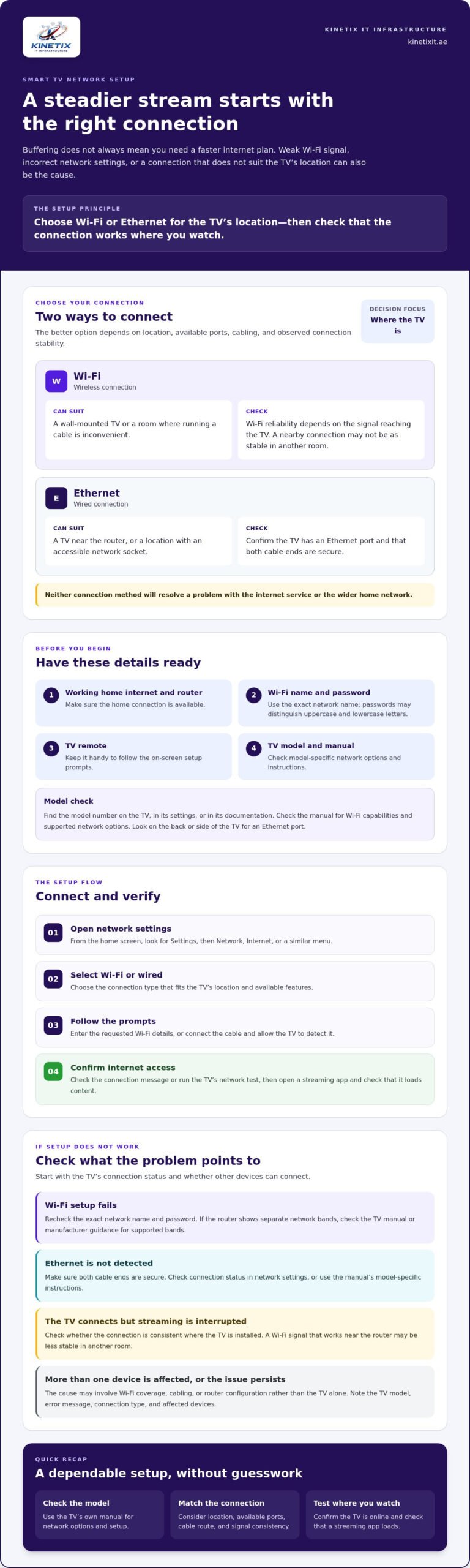
Smoother streaming doesn’t always require a faster internet plan. A smart TV can buffer while other devices work well if its Wi-Fi signal is weak, its network settings are incorrect, or its connection method isn’t suited to its location. A reliable Smart TV Network Setup starts with choosing the right connection to your home network, then checking that it works where the TV is installed.
If confusing menus, repeated connection prompts, or interrupted streams have left you guessing, you’re not alone. Wi-Fi avoids running a cable, while Ethernet provides a wired connection. The better option depends on your TV’s location, available ports, and the connection quality where you watch.
This guide explains how to connect your TV securely, compare Wi-Fi and Ethernet, and check common causes of buffering or lost connections. You’ll also find basic troubleshooting steps and signs that the issue may involve Wi-Fi coverage, cabling, or router configuration rather than the TV. The aim is a dependable connection without unnecessary guesswork.
Key Takeaways
- Check your TV’s manual for its network options and model-specific setup instructions before connecting.
- Follow the on-screen prompts to select Wi-Fi or Ethernet, enter any required details, and confirm the connection.
- Choose a connection based on the TV’s location, available cabling, and signal consistency where you watch.
- For Smart TV Network Setup issues, check whether other devices can connect and note the TV’s connection status before troubleshooting further.
- If several devices are affected or the problem persists, note the TV model, error message, connection type, and affected devices. These details can help identify whether coverage, cabling, or router configuration needs attention.
Smart TV Network Setup: What You Need Before Connecting
Smart TV Network Setup means connecting your television to the internet through Wi-Fi or Ethernet so it can access online services. A smart TV can also communicate with devices on your home network, but a local network connection is not the same as internet access. Streaming apps generally need an active internet connection to load content. If you’re unfamiliar with the term, this overview of what is a Smart TV provides helpful background.
Gather these essentials before you start:
- A working home internet connection and router
- The correct Wi-Fi network name and password, if connecting wirelessly
- Your TV remote and, if needed, access to the router
- The TV’s model information and its manual or manufacturer setup guide
Menu names and supported features vary by TV model. Check the manual to find the network settings and confirm whether your TV supports Wi-Fi, Ethernet, or both. Use instructions for your specific model rather than assuming another TV has the same options.
Check the TV, router, and connection details first
Find the model number on the TV, in its settings, or in its documentation, then refer to the relevant network instructions. Check the back or side of the TV for an Ethernet port and use the manual to confirm its Wi-Fi capabilities. Have the network name and password ready. Enter the password carefully, including uppercase and lowercase letters, which may be treated differently.
If you’re unsure which network name to use, check the router label or the details saved on a device already connected to your home Wi-Fi. Avoid guessing, especially if the router broadcasts more than one network.
Choose Wi-Fi or Ethernet for the TV
Wi-Fi avoids running a cable across the room, which can be practical when the router is far away or the TV is wall-mounted. Its reliability depends on the signal reaching the TV, so a connection that works near the router may be less stable in another room. Ethernet creates a wired link when the TV and router can be connected by cable.
Choose based on the TV’s location, available ports, cable route, and observed connection stability. Ethernet may suit a TV near the router or an accessible network socket. Wi-Fi may be simpler where cabling is inconvenient. Neither option will resolve an issue with the internet service or wider home network.
Once you’ve checked the model details and chosen a connection method, follow the TV’s on-screen setup prompts.
How to Connect a Smart TV to Wi-Fi or Ethernet
Use the TV’s network settings to complete setup. Menu labels vary by manufacturer and model, but the steps are usually similar. For another step-by-step reference, see How to Connect a Smart TV. Keep your remote handy and follow the prompts on screen.
- 1. Open network settings. From the TV’s home screen, look for Settings, then Network, Internet, or a similar menu.
- 2. Select a connection type. Choose Wi-Fi or a wired connection, depending on your plan and the TV’s available features.
- 3. Follow the on-screen prompts. Enter the requested network details or let the TV detect the wired connection.
- 4. Confirm internet access. Look for a connection message or run the TV’s network test, then open a streaming app to check that it loads content.
Connect the TV to a wireless network
In the network or internet settings, choose Wi-Fi and select your home network by its exact name. Enter the password carefully and wait for the TV to confirm the connection. If the router displays separate network bands, check the TV manual or manufacturer support guidance to see which bands the model supports. Don’t assume a network is unavailable until you’ve checked compatibility.
If the connection fails, check the network name and password for typing errors. A connection confirmation is useful, but opening a streaming app is a practical way to verify that the TV can access the internet.
Connect the TV with an Ethernet cable
Plug an Ethernet cable into the TV’s network port and the router, or into an available network socket connected to your home network. Make sure both ends are secure. The TV may detect the wired connection automatically. If it doesn’t, check its status in network settings or consult the manual for model-specific instructions.
After the TV confirms the connection, test a streaming app or run its network check. If the router is far from the TV, an existing wall socket may provide a practical connection point. Where there’s no suitable route, KINETIX IT Infrastructure provides Ethernet installation and network cabling for homes and villas in Dubai.
A completed Smart TV Network Setup should show an active connection and allow online services to load. If the TV reports a connection but apps can’t access content, check whether the issue is with the internet service or wider home network.
Wi-Fi or Ethernet for a Smart TV: Which Connection Is More Reliable?
There isn’t one best connection for every home. When planning Smart TV Network Setup, consider the signal at the TV, whether a cable route is practical, and how consistently the connection performs. Wi-Fi is convenient without extra cabling. Ethernet avoids local wireless signal problems when a suitable wired connection is available. Neither guarantees smooth streaming if the internet service or another part of the network is impaired.
Buffering or disconnections don’t automatically mean the TV is faulty. A weak signal, distance from the router, interference, network congestion, or an internet connection issue can all affect streaming. Check whether the problem occurs only on the TV or on other devices too, and assess the connection where the TV is installed.
When Wi-Fi is a practical choice
Wi-Fi is convenient when the TV receives a stable signal in its usual position and running a cable would be difficult or untidy. Don’t judge signal quality by distance from the router alone. Walls and other obstructions, interference, and competing network traffic can affect performance. Check the TV’s connection status in place, especially if it buffers or disconnects during viewing.
When Ethernet may improve the connection
Consider Ethernet if the TV can connect to a router, network switch, or suitable wall socket. A cable can bypass weak wireless coverage near the TV, but it can’t resolve an internet service interruption or every wider network issue. For a permanent cabling plan, see this guide to structured cabling for home networks.
| Connection | May suit your setup when | Keep in mind |
|---|---|---|
| Wi-Fi | The TV has a stable signal and a cable route isn’t practical. | Signal can vary with walls, distance, interference, and network use. |
| Ethernet | A router, switch, or network socket is accessible, and a cable can be routed neatly. | It avoids local Wi-Fi issues, but not problems with internet service or the wider network. |
Compare the options based on actual conditions, not assumptions. If Wi-Fi is stable at the TV, you may not need a cable. If the wireless connection drops in that location and a wired route is practical, Ethernet is worth testing. If both connections struggle or other devices are affected, the cause may be beyond the TV and require a wider network check.
Smart TV Network Troubleshooting: Fix Buffering and Connection Errors
Start with checks that won’t alter advanced settings. Confirm that another device can use the same home network, then check the TV’s network status to see whether it’s connected by Wi-Fi or Ethernet and whether internet access is available. If the TV isn’t connected, recheck the selected network and password before changing router settings.
- Incorrect password: Forget or remove the saved network if the TV offers that option, then enter the password again carefully.
- Buffering or weak signal: Check whether the problem occurs only where the TV is installed or on other devices too.
- One app won’t load: Try another streaming app. If others work, the issue may be limited to that app or service.
- Intermittent disconnections: Note when they happen and check whether other devices lose access at the same time.
If the connection remains unstable, restart the TV and router according to their manufacturers’ instructions. This may refresh the connection, but it isn’t a guaranteed fix. Check for TV software updates and review router settings using the manufacturers’ guidance. Avoid changing advanced settings unless you understand what they control.
Diagnose buffering, weak signal, and dropped connections
Compare the TV with another device in the same room and on the same network. Then try a different streaming app to see whether buffering is limited to one service or affects several. If practical, connect the TV by Ethernet temporarily. A steadier wired connection can help show whether Wi-Fi coverage contributes to the problem, though it won’t rule out every network or internet issue.
Know when the issue may be beyond the TV
If several devices lose internet access or the router reports a wider outage, the TV may not be the source of the problem. Persistent weak Wi-Fi where the TV is installed can also point to a home coverage issue. For other smart speakers, cameras, and gadgets that keep dropping offline, this Connected Device Configuration checklist for a reliable home network explains what to check. For broader coverage considerations, see this Dubai villa Wi-Fi guide.
If coverage remains weak in the TV’s location or multiple devices keep disconnecting, KINETIX IT Infrastructure provides Wi-Fi troubleshooting and coverage improvement for homes and villas in Dubai. Details about help with persistent home Wi-Fi issues are available online.
When to Get Professional Smart TV Network Setup in Dubai
A routine Smart TV Network Setup usually needs only the TV’s network menu, your Wi-Fi details, or an Ethernet connection. Professional network support is more relevant when the cause appears to extend beyond the TV, such as recurring weak coverage, missing cabling, router configuration concerns, or connection problems affecting several devices.
Look for a pattern before seeking help. If only one app fails while other services work, contact the app or streaming provider. If the TV shows a hardware fault or can’t connect despite a stable home network, the manufacturer may be the right first contact. Network support is a better fit when the symptoms point to the home connection.
Signs a home-network assessment could help
Repeated dropouts in one room can indicate weak Wi-Fi coverage where the TV is installed. Problems across multiple connected devices may point to the router or a wider network issue. An inaccessible Ethernet socket, a router far from the TV, or the need for new cabling can also make setup more complex than a standard TV menu configuration.
KINETIX IT Infrastructure provides home and villa Wi-Fi troubleshooting, coverage improvement, router configuration, and Ethernet installation in Dubai. These services may help when persistent TV connection issues trace back to coverage, cabling, or router setup rather than the TV itself. For broader home connectivity context, see the Home Office Network Setup guide.
Prepare for a smooth support visit
A few details can help clarify the issue and its likely source. Before arranging support, note:
- The TV’s make and model
- The exact error message, if one appears
- Whether the TV uses Wi-Fi or Ethernet
- When the problem tends to happen and how often
- Where the TV and router are located, and whether other devices are affected
Also mention the checks you’ve already tried and whether the problem changes when the TV uses another connection method. This can help distinguish a location-specific coverage concern from a broader router or internet issue.
For persistent network-side issues, KINETIX home network support in Dubai covers the connection path and wider home setup. TV-specific hardware or account concerns are better directed to the manufacturer or streaming provider.
Set Up a More Reliable Streaming Connection
A dependable Smart TV Network Setup starts with the connection that suits the TV’s location and your home network. Wi-Fi is convenient where the signal is steady; Ethernet can help avoid local wireless coverage issues when a cable route is practical. Neither resolves every cause of buffering, so check whether the problem affects other devices or only the TV before deciding what to address.
Start by checking the TV’s connection status and trying basic troubleshooting steps. If the issue keeps returning, especially across several devices or in a room with weak coverage, the cause may involve the router, network cabling, or Wi-Fi coverage rather than the television. TV hardware and streaming account problems may need support from the manufacturer or service provider.
In Dubai, KINETIX IT Infrastructure provides residential Wi-Fi installation and troubleshooting, network cabling, Ethernet sockets, and router configuration. For help with persistent home network or smart TV connectivity issues, contact KINETIX IT Infrastructure.
Frequently Asked Questions
How do I connect my smart TV to Wi-Fi?
Open your TV’s Settings and find Network, Internet, or a similarly named menu. Choose Wi-Fi, select your home network by its exact name, enter the password, and wait for the TV to confirm the connection. Menu labels vary by model, so check the TV manual if the options differ. To confirm Smart TV Network Setup is complete, open a streaming app and check that it can access online content.
Is Ethernet better than Wi-Fi for a smart TV?
Ethernet can provide a consistent link if you can connect the TV to your router, switch, or network socket. It can help avoid weak Wi-Fi coverage near the TV, but it won’t fix an internet service outage or every network problem. Wi-Fi is convenient when the signal is stable where you watch. Choose based on the connection’s actual performance at the TV and whether running a cable is practical.
Can I connect my smart TV to the internet without Wi-Fi?
Yes. If your TV has an Ethernet port, connect it to your router or a suitable network socket with an Ethernet cable. The TV may detect the wired connection automatically. Otherwise, open its network settings and follow the manual’s instructions. If there’s no accessible router or socket nearby, check whether the TV supports another wired option before buying equipment. A wired connection still depends on working internet service.
Why does my smart TV keep disconnecting from Wi-Fi?
Repeated Wi-Fi dropouts may result from a weak signal at the TV, distance or obstructions, wireless interference, network congestion, or router issues. Check whether other devices disconnect at the same time, and compare the TV’s connection in its usual location with another spot if practical. Confirm that the TV supports the network band you’re using by checking its manual. If several devices keep disconnecting, investigate the wider home network rather than assuming the TV is faulty.
What should I do if my smart TV is connected to Wi-Fi but has no internet?
First, check whether another device can access the internet on the same Wi-Fi network. If it can, review the TV’s network status, confirm the selected network, and try another streaming app to see whether access fails everywhere or only in one service. Restart the TV and router according to their manufacturers’ instructions. If multiple devices are offline, contact your internet provider. If only the TV is affected, consult the manufacturer’s support guidance.
Does a smart TV need a separate Wi-Fi network?
No, a smart TV generally doesn’t need its own separate Wi-Fi network. It can connect to your usual home network using the network name and password, provided the TV supports that connection. If your router has separate network names or a guest network, check the TV manual and router guidance before choosing. A guest network may restrict communication with other home devices, even if it provides internet access for streaming.
Why is my smart TV buffering even though my internet works on other devices?
Your TV may receive a weaker Wi-Fi signal than a phone or laptop in the same home, particularly if it’s farther from the router or separated by walls. Buffering may also be limited to one streaming app or result from congestion or an issue with the TV’s network connection. Compare another device in the same room, test a different app, and try Ethernet if practical. In Dubai, KINETIX IT Infrastructure provides residential Wi-Fi troubleshooting and coverage improvement when the wider network may be involved.