
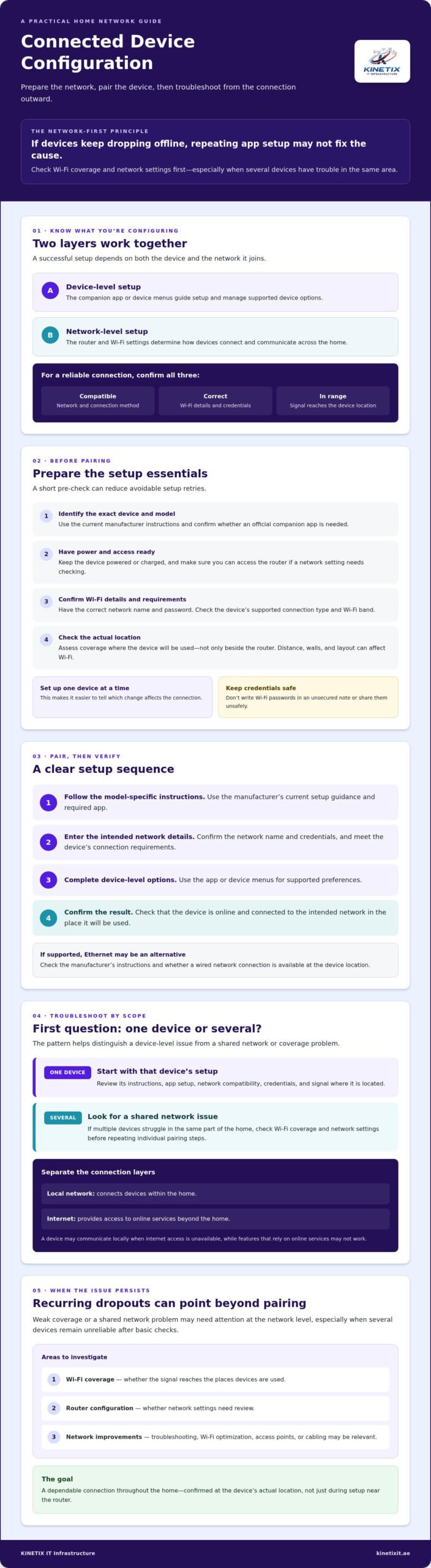
If a device keeps dropping offline, repeating the app setup may not solve the problem. The cause could be weak Wi-Fi coverage or a network setting, especially if several devices have trouble in the same part of your home. Reliable Connected Device Configuration starts with checking the network, not repeatedly pairing each device.
New-device setup can be confusing, particularly when you’re unsure which security settings and updates matter. This checklist explains how to prepare before pairing, confirm a device is connected properly, and narrow down common connection problems.
You’ll learn what to check before setup, how to spot signs of weak coverage or a shared network issue, and what to try when a device goes offline. If several devices remain unreliable after basic checks, professional network support may help identify whether the Wi-Fi setup, router configuration, or coverage needs attention. The aim is a more dependable connection throughout your home.
Key Takeaways
- Separate steps handled in a device’s app from settings controlled by your router or Wi-Fi network.
- Before setup, have the manufacturer’s instructions, Wi-Fi details, router access, and a powered device ready.
- Follow a consistent pairing sequence, then confirm the device is online and connected to the intended network.
- When troubleshooting Connected Device Configuration, first check whether the problem affects one device or several.
- Recurring dropouts or weak coverage may call for network troubleshooting, Wi-Fi optimization, access points, cabling, or router configuration.
Connected Device Configuration: What It Covers and Why the Network Comes First
Connected Device Configuration means joining a device to a network and setting the options it needs to work as intended. That may involve selecting a Wi-Fi network, signing in through a companion app, and choosing available preferences. The device’s app handles device-level setup, while the router and Wi-Fi settings determine how devices connect across your home.
In brief: Device-level setup configures how a device behaves; network-level setup configures how it connects and communicates. The phrase also has a specific technical use in Java ME. The Connected Device Configuration (CDC) reference covers that separate context, rather than providing steps for setting up household Wi-Fi devices.
Reliable connections depend on more than entering a password. The device must support the network and connection method you’re using, the credentials must be correct, and the Wi-Fi signal must reach the device’s location. If one of these conditions isn’t met, setup may fail or the connection may be inconsistent.
Which devices need configuration on a home network?
Smart TVs, phones, laptops, cameras, intercoms, and other connected household equipment may need network configuration. Menus and requirements vary by manufacturer and device, so follow the current instructions for the specific model rather than assuming every setup process is the same.
For example, a Dubai villa may have a smart TV in the living room, laptops in a home office, and cameras or an intercom near outdoor entrances. Each device may require its own app or setup steps, while coverage depends on the shared Wi-Fi network. If a device connects indoors but struggles near an outdoor entrance, the issue may be coverage rather than the app.
How device settings and Wi-Fi settings work together
The device is the equipment you want to connect. The router directs network traffic, and the Wi-Fi network provides the wireless connection. A companion app typically guides setup and lets you manage supported device options. Correct Wi-Fi details help the device join the intended network, while suitable coverage helps it maintain that connection where it’s used.
Your local network connects devices within the home, while the internet provides access to online services beyond it. A device may communicate locally even when internet access is unavailable, although features that rely on online services may not work. This distinction can help you work out whether a problem involves the device, home network, or internet connection. For a related look at planning connectivity for work equipment, see the home office network setup guide.
Before Connecting Devices: Prepare the Network and Setup Details
A few checks before you begin can make Connected Device Configuration more straightforward and reduce avoidable setup retries. Identify the exact device and model, find the manufacturer’s current instructions, and confirm which official app, if any, is required. Keep the device powered on or charged, and make sure you can access the household router if setup requires you to check a network setting.
Have the correct Wi-Fi network name and password ready. Check that the device supports the connection type and Wi-Fi band you plan to use, and follow its specific requirements. Don’t assume that a device that connects to one network or band will support every available option.
- Set up one device at a time so you can tell which change affects the connection.
- Record useful settings or steps for reference, but don’t write down or share Wi-Fi passwords in an unsecured note.
- Use trusted guidance, such as CISA’s home network security best practices, when reviewing how your network is protected.
Check Wi-Fi coverage and connection requirements
Check the intended setup location, not just the area beside the router. A signal that works well in one room may be weaker elsewhere. In a larger Dubai villa, distance, walls, and the layout between the router and a device can affect connectivity, particularly in rooms or outdoor areas farther away. Before choosing a location, check whether the device needs Wi-Fi, Ethernet, or a specific network band.
If the device supports a wired connection, Ethernet may be an alternative to relying on Wi-Fi coverage. Check the manufacturer’s instructions and whether a network connection is available where the device will be used. See the network cabling guide for more on wired home network connections.
Gather device and account information safely
Keep the setup instructions and device label nearby, and download the companion app from an official source identified by the manufacturer. Confirm that you’re entering the correct household network details, and avoid unofficial apps or prompts asking for credentials without a clear reason. If setup requires an account, use its available security options and keep sign-in details private.
You’re ready to begin when you know what the device needs, where it will connect, and which network details to use. If you’re unsure whether coverage, router settings, or cabling is holding up setup, review connected device and home network support as a possible next step.
Connected Device Configuration Checklist: Connect, Test, and Confirm
A completed setup means more than a device that powers on. It should join the intended network, appear online in its official app or interface, and perform its main function where you plan to use it. Follow the manufacturer’s instructions in order, and don’t change router settings unless those instructions or a qualified technician advise it.
Follow a consistent setup sequence
- Power on the device. Place it where Wi-Fi coverage is suitable, or connect it by Ethernet if the manufacturer supports and recommends that option.
- Open the official app or device interface. Choose the option to add or configure a device, then select the correct device type when prompted.
- Select the intended network. Enter the household Wi-Fi details carefully, following any device-specific requirements.
- Complete the prompts. Wait for setup to finish before closing the app or moving the device.
- Confirm its connection. Check the device’s network status and make sure it appears online in the app or interface.
- Test it in place. Use its main function from the location where it will normally operate.
Verify smart TVs and other everyday devices
For a smart TV, check its network status, open an app or online feature, and test playback. A successful connection beside the router doesn’t confirm that service will remain steady in the TV’s usual room. Check other devices by testing a relevant function: confirm a camera is reachable through its intended app, for example, or that another connected household device responds as expected.
If the device shows as offline, confirm that it joined the correct network and that the app is displaying its current status. If it appears online but its main function fails, the issue may involve the device or service rather than the Wi-Fi connection. For TV-specific setup steps, see the Smart TV network setup guide.
In short: Power on the device, use its official app or interface to select the intended network and complete setup, then verify its online status and test its main function in its usual location. This final check confirms that Connected Device Configuration is more than a completed prompt sequence: the device is connected and usable where it matters.
When Connected Devices Fail: Check Security, Updates, and Common Issues
A device that won’t connect may have a device-specific fault, or it may point to a wider Wi-Fi, router, or coverage problem. Start with simple checks before changing settings. If several devices fail at once, or devices in the same area repeatedly drop offline, look for a shared network issue rather than assuming each device needs separate Connected Device Configuration.
Use a simple troubleshooting order
Check whether the device is powered on and showing an error. Confirm that it’s selecting the intended network, then see whether other devices can connect normally. If only one device is affected, review its manufacturer’s instructions and app status. If several devices are affected, or problems occur in particular rooms, the router or Wi-Fi coverage may need attention.
- Check power, device status, and the selected network.
- Restart equipment only as its manufacturer directs, then retest before making another change.
- Record error messages, when the fault occurs, and which rooms or devices are affected.
A restart or update can help in some cases, but neither resolves every connection fault. Test one change at a time so you can identify what helped and give a technician clearer information if you need further support.
Keep connected devices protected
Review the security options available for each device and account. Change default credentials where supported, use strong and unique account passwords, and install official updates for both devices and the router. Before a major update or configuration change, check the manufacturer’s guidance for compatibility and instructions. Avoid unfamiliar apps or update files that don’t come from an official source.
Keep the checks practical: secure accounts, apply trusted updates, and review router security settings using current guidance. For broader recommendations, consult CISA’s home network security best practices. Avoid changing advanced router settings without a clear reason, since an incorrect change may disrupt connections for other household devices.
If basic checks don’t resolve the fault, especially when multiple devices or rooms are affected, a network-level assessment may help distinguish device problems from router configuration or Wi-Fi coverage issues. KINETIX IT Infrastructure provides Wi-Fi troubleshooting and network support for homes and villas in Dubai and throughout the UAE. Explore network troubleshooting and support if persistent connectivity problems need further attention.
When Professional Connected Device Configuration Can Help in Dubai
Professional support may be useful when basic checks haven’t restored a dependable connection. Repeated dropouts, weak Wi-Fi in particular rooms, or several devices failing across the home can point to an issue beyond a single device. In Dubai homes and villas, the right next step depends on the network layout and symptoms. Assess the setup rather than assuming a specific fault.
Recognize when the issue extends beyond one device
Look for patterns. Do different devices lose connection in the same room, or do both wired and wireless connections have trouble? A problem limited to one device may need device-specific troubleshooting. Failures across rooms or devices could warrant checking router configuration, placement, or Wi-Fi coverage. These clues help narrow down the investigation, but they don’t confirm a cause without examining the home network.
Choose a practical next step for a Dubai home
Before seeking help, note the affected device models, where each is used, any error messages, and the checks you’ve already tried. This gives a network professional a clearer starting point. Ask them to assess the home setup and explain which options suit the issue rather than assuming a particular upgrade is necessary.
Possible solutions depend on what the assessment finds. Wi-Fi optimization may be relevant if network settings need adjustment. An access point may help extend coverage, while cabling could suit a location or device where a wired connection is appropriate. Router configuration may also need attention. These approaches aren’t interchangeable, and an assessment of the home helps determine whether wired or wireless changes make sense.
KINETIX IT Infrastructure provides Wi-Fi troubleshooting, coverage optimization, access point installation, network cabling, router configuration, and home and villa networking in Dubai and throughout the UAE. If recurring connection problems remain after basic checks, you can explore professional Wi-Fi and network support as a considered next step.
Make Your Home Network Work More Smoothly
Reliable Connected Device Configuration starts with the network: prepare the right details, follow each device’s setup instructions, and confirm it works where you’ll use it. If a connection fails, check whether the issue affects one device or points to a wider Wi-Fi, router, or coverage concern. Protect devices and accounts with sensible security practices and official updates.
For persistent problems, the right solution depends on your home and network. KINETIX IT Infrastructure supports homes and villas with Wi-Fi installation, troubleshooting, and coverage optimization, as well as router, switch, cabling, and smart TV network setup. An assessment can help identify practical next steps without unnecessary changes.
Explore KINETIX IT Infrastructure’s home networking support if you’d like help creating a more dependable connection. With a clear setup and the right support when needed, your connected home can be simpler to use every day.
Frequently Asked Questions
What does connected device configuration mean?
Connected device configuration is the process of joining a device to a network and setting the options it needs to work. It may involve selecting your home Wi-Fi, entering network details, and using the manufacturer’s app or device menus. The app configures device-level options, while router and Wi-Fi settings manage network access. Requirements vary by device, so follow the manufacturer’s instructions for the specific model.
How do I connect a smart device to my home Wi-Fi?
Use the manufacturer’s official instructions and companion app, if required. Power on the device, choose the add-device option, select your home Wi-Fi network, and enter its password as prompted. Check that the device supports your network’s connection requirements. After setup, confirm it appears online in the app or device menu, then test its main function where you plan to use it.
Why will my connected device not connect to Wi-Fi?
A device may fail to connect because the password or selected network is incorrect, Wi-Fi coverage is weak, or the device doesn’t support the connection settings being used. Check that it’s powered on and follow its manufacturer’s setup instructions. See whether other devices can connect from the same location. If only one device has trouble, focus on its settings; if several do, check the wider network.
Can connected devices use Ethernet instead of Wi-Fi?
Some devices can connect by Ethernet, depending on their available ports and the manufacturer’s guidance. A wired connection may suit equipment that stays in one place, such as a compatible smart TV, if a network connection is available nearby. Confirm the setup requirements before connecting a cable. For home network cabling or Ethernet installation in Dubai, KINETIX IT Infrastructure provides network cabling services.
Is it safe to connect smart home devices to Wi-Fi?
Connecting smart devices can be part of a secure home setup when you take sensible precautions. Change default credentials where supported, use strong and unique passwords for accounts, and install official device and router updates. Download companion apps from trusted sources and review available security settings. Follow current manufacturer and home network security guidance, since settings and update processes can differ between devices.
What should I check when several devices keep disconnecting?
If several devices disconnect, check whether they use the same Wi-Fi network, lose connection in the same rooms, or fail at the same time. Confirm the router is operating normally and note any error messages and affected locations. Follow manufacturer instructions before restarting equipment, and test one change at a time. Repeated problems across devices may point to a shared Wi-Fi, router, or coverage issue.
When should I get professional help configuring devices in a Dubai home?
Consider professional help if basic checks don’t resolve repeated dropouts, weak coverage, or connection failures affecting several devices or rooms. Share device models, error messages, affected locations, and steps already tried. KINETIX IT Infrastructure provides Wi-Fi installation, troubleshooting, and coverage optimization for homes and villas in Dubai, along with router, switch, cabling, and smart TV network setup. Contact KINETIX IT to discuss home Wi-Fi and network support.
2 Responses