
What if your intercom’s connection problem isn’t at the door station at all? When an app or indoor monitor can’t reach the entry panel, the fault may be anywhere between the device, your router, and the home network. Intercom Network Configuration starts with tracing that connection path, not changing settings at random.
It’s reasonable to be cautious. Wi-Fi, Ethernet, IP addresses, and router options can feel unclear, and an unverified change may affect other connected devices. The right setup depends on your intercom model and its manufacturer’s requirements, so there isn’t one universal configuration to apply.
This guide explains how an intercom connects to a home network and compares wired and wireless setup options. You’ll learn which basic checks to make before adjusting router settings, why device documentation matters, and when a fault may need both intercom and network troubleshooting. For homes and villas in Dubai, KINETIX IT Infrastructure provides intercom and network configuration support to help assess the connection path and troubleshoot communication issues.
Key Takeaways
- Map the devices that need to communicate, from the door station to the monitor or app, before troubleshooting.
- Understand how the router and, where used, a network switch connect intercom devices within the home.
- Compare Ethernet and Wi-Fi based on reliability, installation constraints, and the requirements of your specific system.
- For Intercom Network Configuration, check power, connections, and manufacturer-documented settings in a careful sequence.
- Recurring dropouts, complex cabling, or uncertainty about router settings can signal that a professional assessment is the sensible next step.
Intercom network configuration: what needs to connect?
The goal is straightforward: a visitor at the door station should be able to communicate with the indoor monitor, and a supported mobile app should work as intended. Intercom Network Configuration involves connecting the required devices and setting up their access to the home network according to the requirements of that specific system.
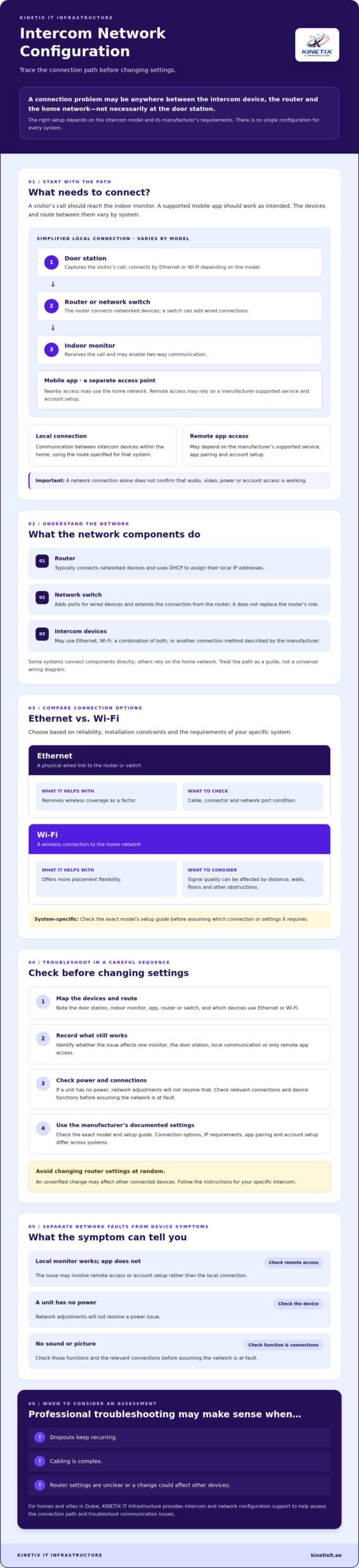
A typical connection path may run from the door station through a router or network switch to an indoor unit. A mobile app may connect locally or use a manufacturer-supported service for access away from home. The exact path varies by model and may combine Ethernet and Wi-Fi. A network connection alone doesn’t confirm that audio, video, power, or account access is working.
For an overview of the building blocks involved, see how intercom network configuration works across a home network. To see an example of IP intercom wiring, watch this video:
Which devices and network connections are involved?
The door station captures a visitor’s call, and the indoor unit receives it and may enable two-way communication. A router connects network-capable devices to the home network, while a switch can provide additional wired connections. Depending on the system, devices may use Ethernet, Wi-Fi, or a combination. An app is a separate access point, and remote features may depend on the manufacturer’s supported service and account setup.
Check whether the indoor monitor and door station communicate over the local network, through a direct connection, or by another method specified by the manufacturer. Where the system supports both, test local monitor functions separately from remote app access. If local communication works but the app doesn’t, the issue may involve remote access or account setup rather than the local connection.
What information should you check before changing settings?
Start with the exact intercom model and its manufacturer’s setup guide. Record which units use Ethernet and which connect over Wi-Fi, then note what still works. Does the problem affect one monitor, the door station, or only remote app access? This simple map helps narrow the issue without changing router settings that could affect other devices.
Also separate connection symptoms from device symptoms. If a unit has no power, network adjustments won’t resolve that. If it powers on but has no sound or picture, check those functions and the relevant connections before assuming the network is at fault. Use the manufacturer’s instructions for exact settings, since connection options and app requirements differ across systems.
How intercom network configuration works across a home network
An intercom’s network path has two parts: the local connection between devices in the home and, if supported, the route that lets a mobile app reach the system remotely. The router typically connects networked devices and uses DHCP to assign their local IP addresses. A network switch adds ports for wired devices, extending the connection from the router without replacing its role.
A simplified communication path looks like this:
- Door station connects by Ethernet or Wi-Fi, depending on the model.
- Router or switch links compatible wired and wireless devices to the home network.
- Indoor monitor communicates locally or through another method specified by the manufacturer.
- Mobile app may use the home network nearby and a manufacturer-supported service for remote access.
This is a guide, not a universal wiring diagram. Some systems connect components directly, while others rely on the home network. App pairing, account setup, and IP assignment also vary. Check the exact manual before changing settings or assuming that a device needs a particular address.
Wired Ethernet or Wi-Fi: how does the connection path differ?
Ethernet provides a physical link between the intercom and the router or switch. It removes wireless coverage as a factor, but the cable, connector, and network port still need to be in good condition. Wi-Fi offers more placement flexibility, though signal quality can be affected by distance, walls, floors, and other obstructions. In a Dubai villa, a door station far from the router may have different coverage from an indoor unit nearby. Neither option guarantees that every function will work. Follow the intercom manual for supported connection types and requirements.
How do router and switch settings fit into setup?
DHCP commonly assigns local network addresses automatically, but confirm the intercom’s supported configuration first. A reserved address may be useful in some setups, while network segmentation can separate device traffic. Both require compatible equipment and careful planning. Don’t open router ports or change firewall rules based on generic advice. Follow verified manufacturer guidance, and check with your internet provider before making router changes that may affect other devices.
Keep local and remote access tests separate. If a monitor works locally but the app cannot connect away from home, that points to a different part of the connection path than a failed wired link. If the cause remains unclear, intercom network configuration support can help assess the intercom and its network connections together.
Ethernet vs Wi-Fi for intercom network configuration
Choosing a connection method depends on the intercom’s supported options and the route between each device and the router. Ethernet creates a wired link; Wi-Fi avoids running a cable to the device. Neither guarantees a trouble-free system, since faults can also involve power, device settings, or app access. Use this comparison to guide your checks, then confirm the requirements in the manufacturer’s documentation.
| Factor | Ethernet | Wi-Fi |
|---|---|---|
| Connection reliability | Not affected by wireless signal coverage, but depends on sound cable connections and working network ports. | Depends on usable signal at the device location and can be affected by distance or obstructions. |
| Installation constraints | Needs a compatible Ethernet port and a suitable cable route to the router or switch. | Can avoid a new network cable, but the device must support Wi-Fi and receive adequate coverage. |
| Flexibility | Placement is tied to cable access. | Offers more placement options within the network’s coverage. |
| Likely checks | Inspect the cable, terminations, and connected switch or router port. | Check the signal at the intercom, then confirm the documented wireless setup. |
When may a wired intercom connection make sense?
Ethernet may suit a door station or monitor when the intercom supports it and suitable cabling is already available, or when a cable route can be installed cleanly. A weak or damaged cable, poor termination, or inactive switch port can still interrupt communication, so “wired” doesn’t automatically mean “working.” For background on planning cable routes, see this structured cabling guide.
When may Wi-Fi be a practical option?
Wi-Fi may be convenient where running a cable is difficult, provided the intercom model supports wireless networking. Test coverage where the door station or monitor will actually sit, not just beside the router. In a villa, walls, floors, and distance between the router and entry can make signal conditions differ from room to room. Confirm app and device requirements in the video intercom setup guide.
For Intercom Network Configuration, compare the installation conditions with the manufacturer’s stated connection options. If a wired unit is offline, check the physical link. If a wireless unit drops out, assess coverage at its location. This helps narrow the cause without assuming that switching connection types will resolve every fault.
How to troubleshoot intercom network configuration step by step
Work from simple, observable checks toward settings changes. This keeps troubleshooting focused and reduces the chance of disrupting other connected devices. Before you begin, note any error messages and recent changes, such as a new Wi-Fi password, router adjustment, or intercom update.
- Confirm power. Check that the door station and indoor monitor are switched on and show their usual status indicators.
- Identify what fails. Test the functions separately: door station response, monitor communication, audio or video, and app access where supported.
- Inspect connections. Look for loose or visibly damaged Ethernet connections, and check the intercom’s Wi-Fi status if available. Don’t disconnect unfamiliar cables from a router or switch.
- Check documented settings. Use the exact model’s manufacturer guide for network, pairing, and account instructions. Avoid applying settings copied from another intercom.
What should you check when the intercom is offline?
First confirm the unit has power. Then check visible network indicators and whether other household devices can access the network. If they can’t, the issue may extend beyond the intercom. Before restarting a router or switch, consider whether that could interrupt other users or devices. Verify that the intercom’s cable is seated and its router or switch connection appears intact, but don’t unplug equipment you can’t identify.
Keep a short record of what you tested and what changed. If the unit shows an error, capture its wording rather than guessing at the cause. This gives you a clearer reference if further diagnosis is needed.
What if the monitor works but the mobile app does not?
A working monitor suggests that some local intercom functions remain available, but it doesn’t confirm that remote app access or account pairing is set up correctly. Check the app’s permissions on the phone, confirm you’re signed into the intended account, and follow the manufacturer’s instructions for your model. If the app only fails away from home, note that detail for diagnosis.
Don’t disable router security or expose the intercom directly to the internet as a quick fix. Before attempting a factory reset, check the manual. Resetting can erase settings or device pairing, and the recovery steps vary by model.
If resolving the issue requires router credentials, network changes, or work on installed cabling, pause rather than risk affecting the rest of the home network. For a fault involving both the intercom and its connection path, arrange intercom troubleshooting and network configuration with KINETIX IT Infrastructure in Dubai.
When professional intercom network configuration is the better next step
Consider an expert assessment if the intercom keeps dropping offline, several devices are affected, cabling is difficult to trace, or resolving the issue would mean changing router settings you’re unsure about. These symptoms can involve more than one part of the system. A specialist can assess the intercom, its connections, and the relevant home-network path together instead of treating each device in isolation.
For homes and villas in Dubai, KINETIX IT Infrastructure provides intercom configuration, troubleshooting, and repair, alongside residential network support such as router and switch configuration, cabling, and Wi-Fi troubleshooting. The right next step depends on the intercom model, the symptoms, and the existing installation. Check exact settings against the manufacturer’s documentation.
What should you prepare before requesting support?
A clear handoff helps narrow the issue. Gather the intercom model and user guide, note any error messages, and describe what works and what doesn’t. Include whether the setup uses Ethernet, Wi-Fi, a network switch, or a combination, and mention recent changes such as a new router, password, or device pairing. Don’t send router passwords or sensitive account credentials through an unsecured message.
- System: intercom model and the devices involved.
- Symptoms: which functions fail, and whether the problem is constant or intermittent.
- Connection: known wired and wireless links, plus any visible connection indicators.
- Recent changes: updates or adjustments made before the issue began.
How can the intercom fit into a well-planned villa network?
Consider intercom placement, available cabling, Wi-Fi coverage, and the needs of other connected devices together. A door station at an entrance may have different cable access or wireless coverage from an indoor monitor elsewhere in the villa. A suitable layout depends on the site, the equipment, and the manufacturer’s requirements, so don’t assume that one connection method or router setting suits every installation. For broader context, read this modern villa intercom guide.
If recurring connection problems or uncertain settings are affecting your system, a measured assessment can help clarify whether the issue lies with the intercom, its cabling, Wi-Fi, or router configuration. For help assessing an intercom connection issue, contact KINETIX IT Infrastructure about intercom troubleshooting and network configuration.
Make your intercom connection more dependable
A reliable intercom depends on the full connection path, from the door station and indoor monitor to the router and any supported app. The right choice between Ethernet and Wi-Fi depends on the device requirements, cabling, and coverage at its installed location. If something stops working, check power and affected functions first, then follow the manufacturer’s guidance before changing network settings or resetting the system.
Intercom Network Configuration can involve both the intercom and the home network, so recurring dropouts or uncertainty about router settings may call for a complete assessment. KINETIX IT provides intercom network configuration, troubleshooting, and repair, with residential network support for Wi-Fi, routers, switches, and cabling.
If you’re unsure where the connection is failing, contact KINETIX IT to discuss your intercom network configuration. Share the intercom model, what is and isn’t working, and any recent changes so the issue can be assessed in context.
Frequently Asked Questions
How do I connect an intercom to my home network?
Follow the setup guide for your exact intercom model, since connection steps vary. Identify whether the door station and indoor monitor use Ethernet, Wi-Fi, or another supported arrangement. Connect them as directed, then complete any required network setup, app pairing, or account sign-in. Test local monitor functions separately from mobile app access. If a step calls for router changes, check the manufacturer’s instructions before proceeding.
Should an intercom use Wi-Fi or Ethernet?
Use the connection type supported by your intercom and suited to its location. Ethernet may be practical where compatible equipment and suitable cabling are available. Wi-Fi can offer more placement flexibility if the signal is adequate at the door station or monitor. Neither option guarantees that every function will work. In a Dubai villa, consider the router location, walls, floors, cable routes, and device requirements before choosing.
Why is my intercom not connecting to Wi-Fi?
Possible causes include weak coverage at the intercom, an incorrect network setup, a changed Wi-Fi password, or a device-specific compatibility or pairing issue. Check whether other household devices can connect and note any error message. Confirm the intercom’s supported wireless requirements in its manual, then verify the setup without changing router security settings at random. If coverage is poor at the device location, network troubleshooting may be needed.
Can I configure an intercom network connection myself?
Often, you can follow the manufacturer’s setup guide for basic connection and app pairing, provided you’re comfortable with the steps and have access to the required account. Start with the model’s instructions and avoid copying settings from another system. Pause before changing router, firewall, or switch settings if you’re unsure what they do. Intercom Network Configuration can involve both the device and home network, so some faults need both checked.
Why does my intercom work at home but not in the mobile app?
The indoor monitor may communicate locally while the app relies on separate account pairing or manufacturer-supported remote access. Check that the app is signed into the intended account, has the relevant phone permissions, and is configured according to the model’s guide. Note whether it works while your phone is connected to home Wi-Fi but not away from home. Avoid exposing the intercom to the internet or disabling router security as a quick fix.
Does an intercom need a static IP address?
Not necessarily. Many home routers use DHCP to assign local network addresses automatically, and an intercom may be designed to work with that setup. Some systems may support a reserved address or another specific configuration, but don’t assume one is required. Check the manufacturer’s instructions before assigning an address or changing router settings, and confirm that any chosen configuration is compatible with the intercom and the rest of your network.
When should I call a technician for intercom network configuration?
Contact a technician if dropouts keep returning, several devices are affected, cabling needs inspection, or troubleshooting requires router changes you’re unsure about. A professional can assess the intercom and its network path together. KINETIX IT Infrastructure provides intercom configuration, troubleshooting, and repair, alongside residential Wi-Fi, router, switch, and cabling support for homes and villas in Dubai. Prepare the model, symptoms, affected devices, connection type, and recent changes.
2 Responses